How to Create a Storyboard from a Video Automatically
You can automatically create a storyboard from a video by extracting frames at regular intervals throughout the footage, then arranging those frames in sequence into a grid or timeline layout that shows the video's flow at a glance.
Storyboards built this way are useful for reviewing pacing, spotting specific moments quickly without scrubbing through the whole video, or documenting footage for editing reference. This guide covers the full automated extraction process, plus how to turn the raw frames into an actually usable storyboard layout.
What makes a good storyboard interval
The key decision in an automatic storyboard is how often to grab a frame. This depends entirely on your video's length and purpose:
- Short videos (under a minute) often work well with a frame every 1-2 seconds, giving a detailed, near-complete picture of the video's flow.
- Medium-length videos (a few minutes) typically work better with a frame every 5-10 seconds, keeping the total number of frames manageable while still capturing the overall structure.
- Long videos (many minutes or hours) usually need a much wider interval, such as every 30 seconds or every minute, or the storyboard becomes too large to be useful at a glance.
There's no single correct interval it's a trade-off between detail and usability, and it's worth adjusting based on what you're actually trying to see in the storyboard.
- How to Screen Record and Grab a Frame from a Facebook Video
- How to Extract Frames from Video Using Adobe Premiere Pro
- Best Free Screenshot Tools for Windows and Mac
Extract frames at regular intervals
- What makes a good storyboard interval
- Extract frames at regular intervals
- Using VLC's Scene Video Filter
- Using FFmpeg for more precise control
- Organize the extracted frames
- Arrange frames into a storyboard layout
- Adding context to your storyboard
- Common use cases for automatic storyboards
- Common issues and fixes
- Conclusion
- FAQ
Using VLC's Scene Video Filter
- Open VLC, go to Tools, then Preferences, then click Show settings: All at the bottom left.
- Navigate to Video, then Filters, and check Scene Video Filter.
- Expand Video, then Filters, then Scene Filter, and set your directory path, image format, and recording ratio, which controls how often a frame is captured.
- Save the settings, then play the video VLC extracts frames automatically as it plays, saving each one to your chosen folder.
- Once finished, return to preferences and uncheck the filter so it doesn't affect regular playback afterward.
Using FFmpeg for more precise control
FFmpeg offers more precise, scriptable control over extraction intervals, letting you specify exactly how many frames per second (or per longer interval) to pull from the video, with output files automatically numbered in sequence, ready to arrange into a storyboard layout.
Organize the extracted frames
Once you have a folder full of sequentially numbered frame images, a few organizing steps help before building the actual storyboard layout:
- Review the frames quickly in a file browser's thumbnail view, deleting any that are clearly redundant, blank, or represent a transition moment that doesn't add useful information.
- Rename or renumber if needed, though most extraction tools already output frames in sequential order by default, making this step often unnecessary.
- Note timestamps if your tool didn't automatically label them, since knowing exactly when each frame occurred in the original video is often valuable for reference later.
Arrange frames into a storyboard layout
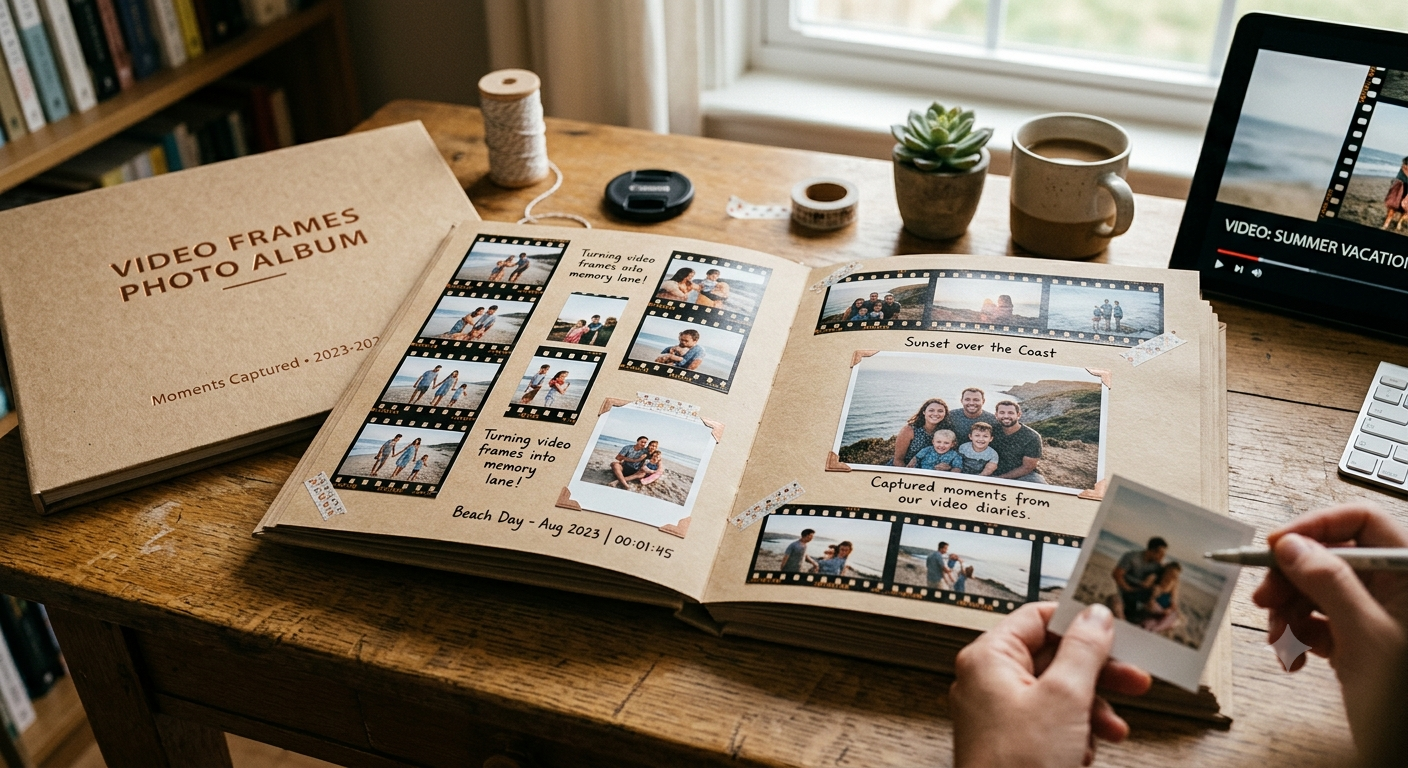
Using a grid layout in a document or presentation tool. Most word processors, presentation software, or even basic photo collage tools let you arrange a series of images into a grid, which is often the simplest way to build a storyboard from your extracted frames without needing specialized software.
Using dedicated storyboard software. Some free and paid tools are built specifically for storyboard creation, offering templates that automatically arrange a sequence of images with space for notes or captions underneath each frame.
Using a simple contact sheet approach. Some image editing and organizing tools include a "contact sheet" feature originally designed for photographers, which automatically arranges a folder of images into a grid this works well for a quick, no-frills storyboard without manual arrangement.
Recommended Articles
 CREATIVE USE CASES
 CREATIVE USE CASES
 CREATIVE USE CASES
 CREATIVE USE CASES
- How to Extract a Frame for a YouTube Thumbnail
- Best Free vs Paid Frame Grabber Tools Compared
- How to Screenshot on iPhone (All iOS Versions)
- How to Grab Frames Using QuickTime Player on Mac
Adding context to your storyboard
A storyboard built purely from raw frames is useful, but adding a little context makes it considerably more valuable:
- Timestamps under each frame, so you can quickly locate the corresponding moment in the original video if needed
- Brief notes describing what's happening, especially useful if you're sharing the storyboard with someone who hasn't seen the full video
- Grouping or color-coding frames by scene or section, for longer videos with distinct segments
Common use cases for automatic storyboards
Reviewing pacing during editing. Seeing the entire video's visual flow at a glance can reveal pacing issues too many similar-looking shots in a row, or an unexpectedly long stretch without visual variety that are harder to notice while scrubbing through in real time.
Documentation and reference. A storyboard makes it easy to reference specific moments in a longer video without needing to re-watch and manually scrub to find them each time.
Content planning and review with others. Sharing a storyboard is often faster and easier for collaborators to review than sending a full video file, especially for quick feedback on structure or specific moments.
Common issues and fixes
Too many extracted frames to work with. Increase your extraction interval fewer frames spaced further apart makes for a more manageable storyboard, especially for longer videos.
Important moments were missed between intervals. If a specific key moment falls between your regular extraction intervals, manually extract that specific frame separately and add it into your storyboard alongside the automatically generated ones.
Frames look inconsistent in quality or brightness. This usually reflects genuine variation in the original footage, such as different lighting conditions across scenes, rather than an extraction problem this is often exactly the kind of inconsistency a storyboard is useful for catching.
- How to Save a Frame from an Instagram Reel
- How to Capture Video Frames Using Windows Photos App
- How to Download a YouTube Thumbnail in Full Resolution
- Video Resolution Explained: 720p vs 1080p vs 4K
Conclusion
Building a storyboard automatically comes down to picking a sensible extraction interval for your video's length, using a tool like VLC's Scene filter or FFmpeg to pull the frames, and then arranging them into a simple grid layout with whatever context timestamps, notes, grouping makes it most useful for your specific purpose. It's a fast way to get an overview of a video's visual flow without manually scrubbing and capturing each moment by hand.
FAQ
What's a good frame interval for a 5-minute video storyboard?
Somewhere around every 5-10 seconds usually works well, giving a detailed but still manageable number of total frames to review.
Can I automatically add timestamps to each extracted storyboard frame?
Some extraction tools, particularly FFmpeg with the right settings, can include timestamp information in filenames, making it easier to match each frame back to its exact moment in the video.
Is there free software specifically designed for storyboards?
Yes, several free tools and templates exist specifically for storyboard layouts, though a simple grid arrangement in any basic document or presentation tool works just as well for most purposes.
Why does my automatic storyboard have some blurry or unclear frames?
This usually reflects motion blur or a transition moment in the original footage at that specific interval point reviewing and removing a few unclear frames manually is a normal part of the process.
Can I create a storyboard from an online video without downloading it first?
This is more limited than working with a local file most bulk, interval-based extraction tools like VLC's Scene filter and FFmpeg work with local files, so downloading the video first is usually necessary for automatic storyboard creation.