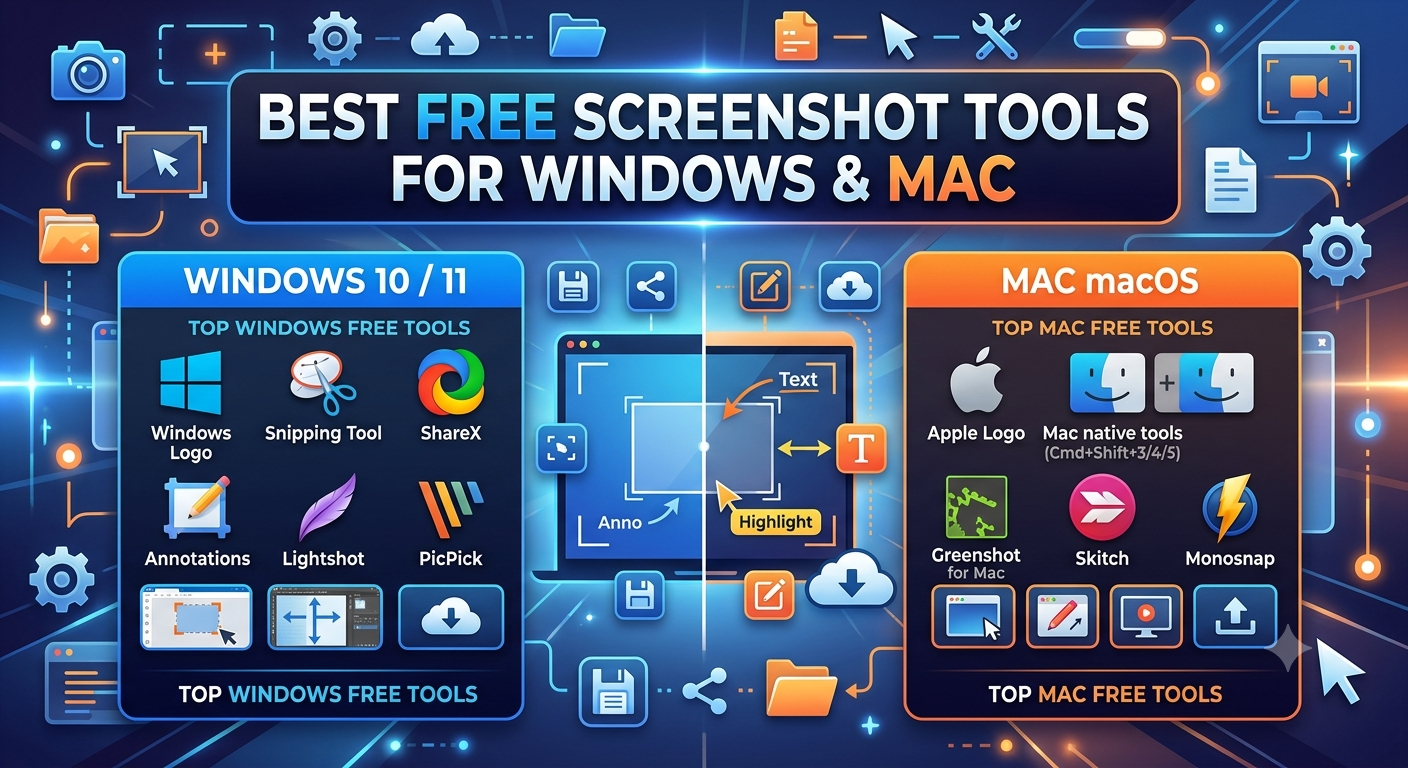
Best Free Screenshot Tools for Windows and Mac (2026)
Both Windows and Mac include genuinely capable built-in screenshot tools that cover the vast majority of everyday needs for free, with third-party tools mainly adding value for scrolling captures, advanced annotation, or automated workflows.
Before reaching for a separate download, it's worth knowing exactly what your operating system already offers, since the built-in options have improved significantly over the years. This guide covers the best free options on both platforms and when a third-party tool actually earns its place.
Built-in Windows tools
Windows plus Shift plus S (Snipping Tool overlay) This is the best all-around built-in option on Windows. It opens a small toolbar letting you choose between a rectangular selection, freeform selection, a specific window, or the full screen, with the result copied straight to your clipboard for pasting or saving.
Windows plus Print Screen Captures your entire screen and automatically saves it as a file in your Pictures folder, without needing to paste it anywhere the most hands-off option for quick, full-screen captures.
The Snipping Tool app Opened directly from the Start menu, this adds a delay timer and basic annotation tools like a pen and highlighter, useful when you need a moment to set up before capturing, such as opening a menu first.
- How to Screen Record and Grab a Frame from a Facebook Video
- How to Extract Frames from Video Using Adobe Premiere Pro
Built-in Mac tools
Shift, Command, and 5 The most versatile Mac option, opening a toolbar with choices for full screen, a selected window, or a custom area, plus a built-in timer and basic screen recording, all in one unified tool.
Shift, Command, and 3 A quick full-screen capture, saved automatically to the Desktop, for situations where you already know you want the whole screen with no extra selection step.
Shift, Command, and 4 Opens a crosshair for selecting a specific custom area, one of the most commonly used Mac screenshot shortcuts for everyday needs.
When built-in tools are genuinely enough
For the majority of everyday screenshot needs capturing an error message, saving part of a webpage, sharing something in a chat the built-in tools on both Windows and Mac cover the task completely, with no download required and no risk of installing something less trustworthy than an official operating system feature.
Where third-party tools add real value
A few specific situations are where a free third-party tool genuinely improves on the built-in options:
Scrolling screenshots. Neither Windows nor Mac natively supports capturing an entire scrollable webpage or document in one continuous image this is the single most common reason people look for a third-party screenshot tool.
Advanced annotation. While both operating systems include basic markup tools, some third-party options offer more advanced annotation features, like numbered callouts, blur tools for hiding sensitive information, or more extensive shape and arrow options.
Automatic upload and sharing. Some free third-party tools automatically upload a screenshot and generate a shareable link the moment you capture it, streamlining the process of sharing screenshots with others compared to manually attaching a file.
Delayed and scheduled captures. Beyond the basic timer built into the native tools, some third-party options offer more advanced scheduling or automated capture features, useful for specific repetitive workflows.
- How to Extract a Frame for a YouTube Thumbnail
- Best Free vs Paid Frame Grabber Tools Compared
- How to Screenshot on iPhone (All iOS Versions)
- How to Grab Frames Using QuickTime Player on Mac
Evaluating a free third-party screenshot tool
If you do decide a built-in tool isn't quite enough for your needs, a few things are worth checking before installing anything new:
Recommended Articles
 COMPARISONS AND BEST TOOLS
 COMPARISONS AND BEST TOOLS
 COMPARISONS AND BEST TOOLS
 COMPARISONS AND BEST TOOLS
- Is it actually free, or does it push a paid upgrade for basic features? Some tools market themselves as free but restrict core functionality behind a paywall.
- Does it respect your privacy? Especially for tools with automatic upload features, check whether captured images are kept private or could be publicly accessible by default.
- Is it actively maintained? An outdated tool is more likely to have compatibility issues with current operating system versions.
- Does it add unnecessary background processes? Some free tools bundle extra software or run persistently in the background beyond what's actually needed for their core screenshot function.
Quick comparison: built-in vs third-party
| Need | Built-in tools | Third-party tools |
|---|---|---|
| Basic full-screen or area capture | Fully covered | Not necessary |
| Custom window capture | Fully covered | Not necessary |
| Scrolling full-page capture | Not supported | Where third-party tools add real value |
| Advanced annotation (blur, callouts) | Basic only | Often more advanced |
| Automatic upload/sharing links | Not built in | Available in some tools |
| Delay timer | Available on both platforms | Sometimes more flexible |
A note on trustworthiness
Since screenshot tools by nature have access to whatever's currently on your screen, it's worth being a little more careful than usual about where you download one from. Stick to well-known, actively maintained tools, and be wary of anything requesting unusual permissions unrelated to its core screenshot function.
- How to Save a Frame from an Instagram Reel
- How to Capture Video Frames Using Windows Photos App
- How to Download a YouTube Thumbnail in Full Resolution
- Video Resolution Explained: 720p vs 1080p vs 4K
Conclusion
For most people, the built-in screenshot tools on Windows and Mac are genuinely sufficient Windows plus Shift plus S and Shift, Command, and 5 respectively cover the overwhelming majority of everyday screenshot needs completely for free. A third-party tool only really earns its place if you specifically need scrolling full-page captures, more advanced annotation than the basics, or automated sharing features that the built-in tools don't offer.
FAQ
Do I need a third-party tool for basic screenshots on Windows or Mac?
No, both operating systems' built-in tools cover full-screen, window-specific, and custom-area captures completely for free, with no download required.
What's the main reason people look for a third-party screenshot tool?
Scrolling screenshots that capture an entire webpage or document, not just what's currently visible, since neither Windows nor Mac supports this natively.
Are free third-party screenshot tools safe to use?
Many are, but it's worth checking that a specific tool is actively maintained, transparent about privacy, and doesn't bundle unnecessary extra software before installing.
Can built-in tools annotate screenshots after capturing?
Yes, both Windows' Snipping Tool and Mac's Shift, Command, and 5 toolbar include basic annotation features like a pen and highlighter, though more advanced options like blur tools are more commonly found in third-party software.
Is it better to use a browser extension or a standalone app for screenshots?
This depends on your specific need browser extensions are convenient for capturing webpages specifically, including scrolling captures, while standalone apps generally offer broader functionality across your entire screen, not just browser content.