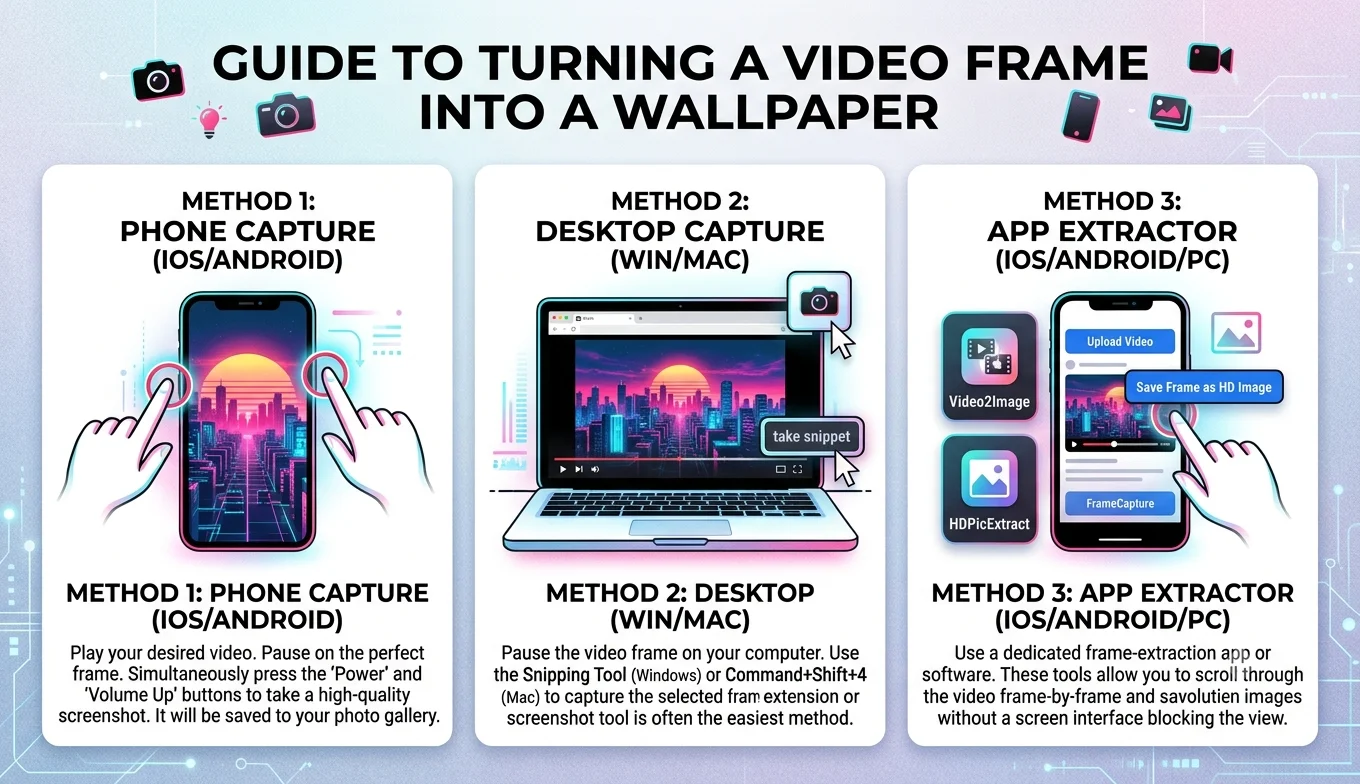
How to Turn a Video Frame Into a Wallpaper
You can turn any video frame into a wallpaper by extracting the frame as a still image, cropping it to your screen's aspect ratio, and setting it as your background the whole process takes just a few minutes with the right tools.
Whether it's a beautiful shot from a movie, a favorite moment from a music video, or a scene from your own footage, this guide covers the full process from extraction to a properly fitted, sharp wallpaper.
Find the right frame
Before extracting anything, scrub through the video and pick a moment that will actually work well as a wallpaper. A few things make a frame wallpaper-friendly:
- Simple composition. Busy scenes with lots of small details can look cluttered once shrunk to fit a home screen with icons on top.
- Good lighting. Frames from well-lit scenes hold up far better than dark or shadowy ones, which can look muddy once compressed and displayed on a screen.
- Minimal motion blur. Pick a moment where the subject is relatively still, since motion blur becomes very obvious on a static wallpaper you'll be looking at for a long time.
- Leave room for icons. If it's a phone wallpaper, consider that your app icons and clock will sit over parts of the image a frame with open space in the upper and lower thirds usually works best.
Extract the frame
From a local video file
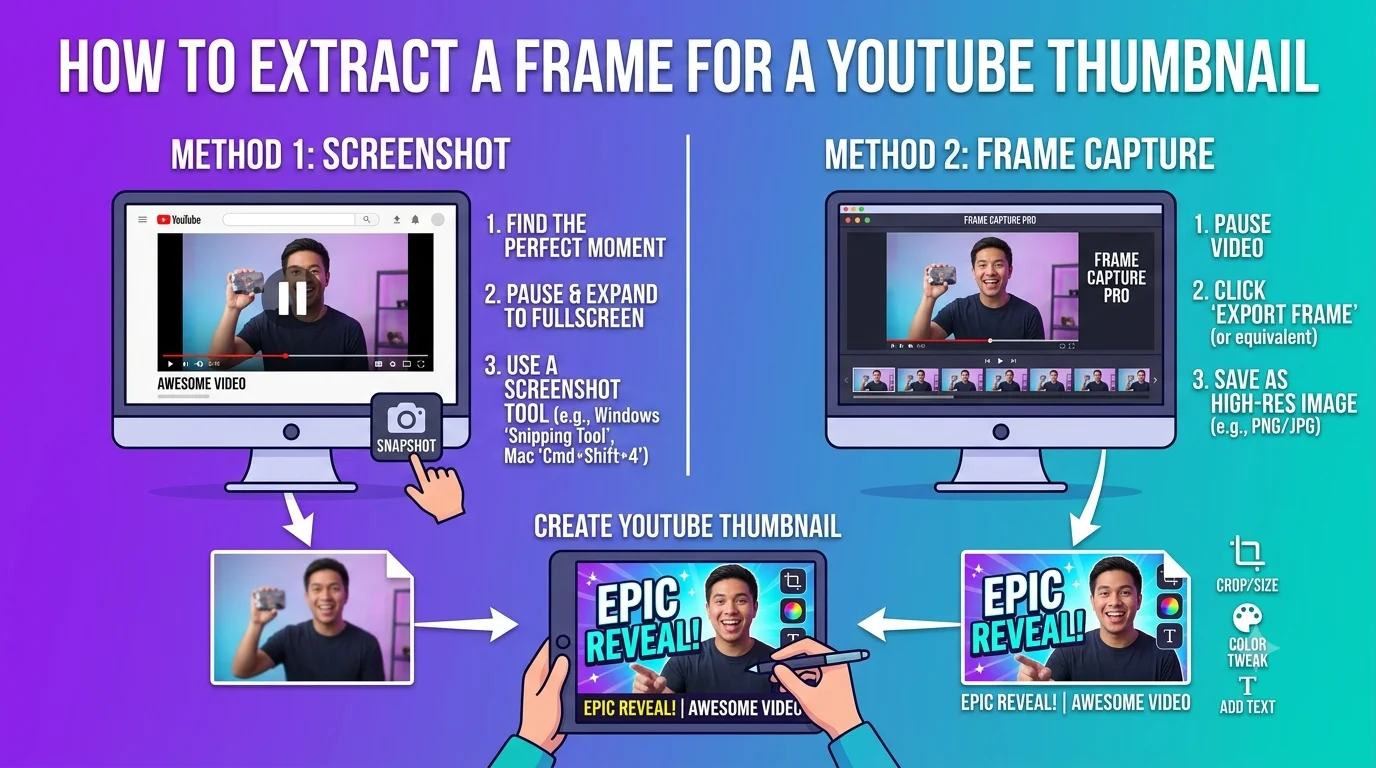
Open the video in a media player like VLC, pause at your chosen moment, and use its snapshot feature to save the frame as a PNG or JPG image.
From an online video (YouTube, streaming platforms, etc.)
Copy the video's link, paste it into an online frame grabber, scrub to your chosen timestamp, and download the frame. Set the video to its highest available quality before capturing, since your wallpaper will only be as sharp as the source resolution.
Check the resolution before you crop
This is the step people skip most often, and it's the reason many homemade wallpapers end up blurry. Your extracted frame needs to be at least as large as your screen's resolution:
- Phone wallpapers typically need at least 1080 x 1920 pixels for a sharp result on modern displays.
- Desktop wallpapers often need 1920 x 1080 or higher, and 4K monitors need considerably more.
If your source video was recorded or uploaded at a lower resolution, the extracted frame simply won't have enough detail to fill a high-resolution screen without looking soft there's no way to add detail back in that wasn't captured in the first place.
Crop to your screen's aspect ratio
Video is usually a different shape than your phone or monitor screen, so cropping is almost always necessary:
- Phone screens are tall and narrow (portrait), while most video is wide (landscape) this often means you'll only be able to use a cropped portion of the frame, not the whole thing.
- Desktop monitors are typically widescreen (16:9), which is a closer match to standard video, so less cropping is usually needed.
- Ultrawide monitors need extra-wide source footage or careful stretching, which can distort the image if not done carefully.
Most photo editors, including free ones, let you set a custom crop ratio matching your exact screen dimensions so the image lines up perfectly without stretching.
Adjust and set as your wallpaper
Once cropped, a few small touches can make a big difference:
- Slightly increase contrast if the frame looks a little flat, which is common with footage that was color-graded for video playback rather than as a still image.
- Reduce noise if the source was low light, using your editor's noise reduction tool, since visible grain becomes far more obvious blown up as a wallpaper than it was in motion.
- Save as PNG if you plan to keep editing, or a high-quality JPG for the final wallpaper file to keep the size reasonable.
Then set it using your device's normal wallpaper settings: Settings > Wallpaper on most phones, or right-click > Set as desktop background on Windows and Mac.
Recommended Articles
 CREATIVE USE CASES
 CREATIVE USE CASES
 CREATIVE USE CASES
 CREATIVE USE CASES
Common problems and fixes
The wallpaper looks blurry once set. This almost always traces back to source resolution the extracted frame was smaller than your screen's resolution. Try finding a higher-quality version of the source video, or accept a moderate crop that uses a smaller, sharper portion of the frame rather than stretching a larger, softer one.
Icons are hard to see on top of the image. Choose a frame with a simpler area of sky, wall, or open space where your home screen icons will sit, or apply a subtle darkening/blur effect just to that portion in your editor.
Colors look different than they did in the video. Video and still images sometimes render color slightly differently depending on your device's display settings try adjusting brightness or saturation slightly after cropping to match what you remember seeing during playback.
The frame has visible compression blocks. This means the source video was heavily compressed, common with videos re-uploaded across multiple platforms. Look for the original, highest-quality source if possible, since compression artifacts can't be removed after the fact, only smoothed over with filters that reduce sharpness elsewhere.
Ideas for great wallpaper source material
- A favorite scene from a movie or TV show with strong cinematography
- A calm, well-lit moment from a nature documentary
- A single striking frame from a music video
- A personal video, like a sunset or landscape you filmed yourself, which also avoids any copyright concerns entirely
Conclusion
Turning a video frame into a wallpaper is mostly about picking the right moment and respecting your screen's resolution a well-composed, well-lit, mostly-still frame extracted at high quality will always outperform a rushed screenshot. Once you've got a clean extraction, cropping to your exact screen ratio and a small contrast boost is usually all it takes to get a wallpaper that looks like it was made for your device.
FAQ
What resolution do I need for a phone wallpaper?
Most modern phones look sharp with a wallpaper around 1080 x 1920 pixels or higher check your specific phone's screen resolution in its display settings for the exact number.
Can I use a frame from a low-resolution video as wallpaper?
You can, but it will look softer than your screen's native sharpness, especially noticeable on higher-end displays. It often works better as a stylized or blurred background rather than a fully sharp wallpaper.
Do I need special software to crop a frame into a wallpaper?
No most phones and computers include a basic photo editor capable of cropping to a custom ratio, and free online editors handle it easily if you don't have one installed.
Can I turn a GIF into a wallpaper?
Some devices support animated or live wallpapers built from a short video clip rather than a single frame this is different from a static wallpaper and depends on your device supporting that feature.
Will using a frame from a movie as wallpaper cause copyright issues?
For personal, private use on your own device, this is generally considered acceptable under fair use in most places. Issues would typically only arise if you redistributed or sold the image commercially.