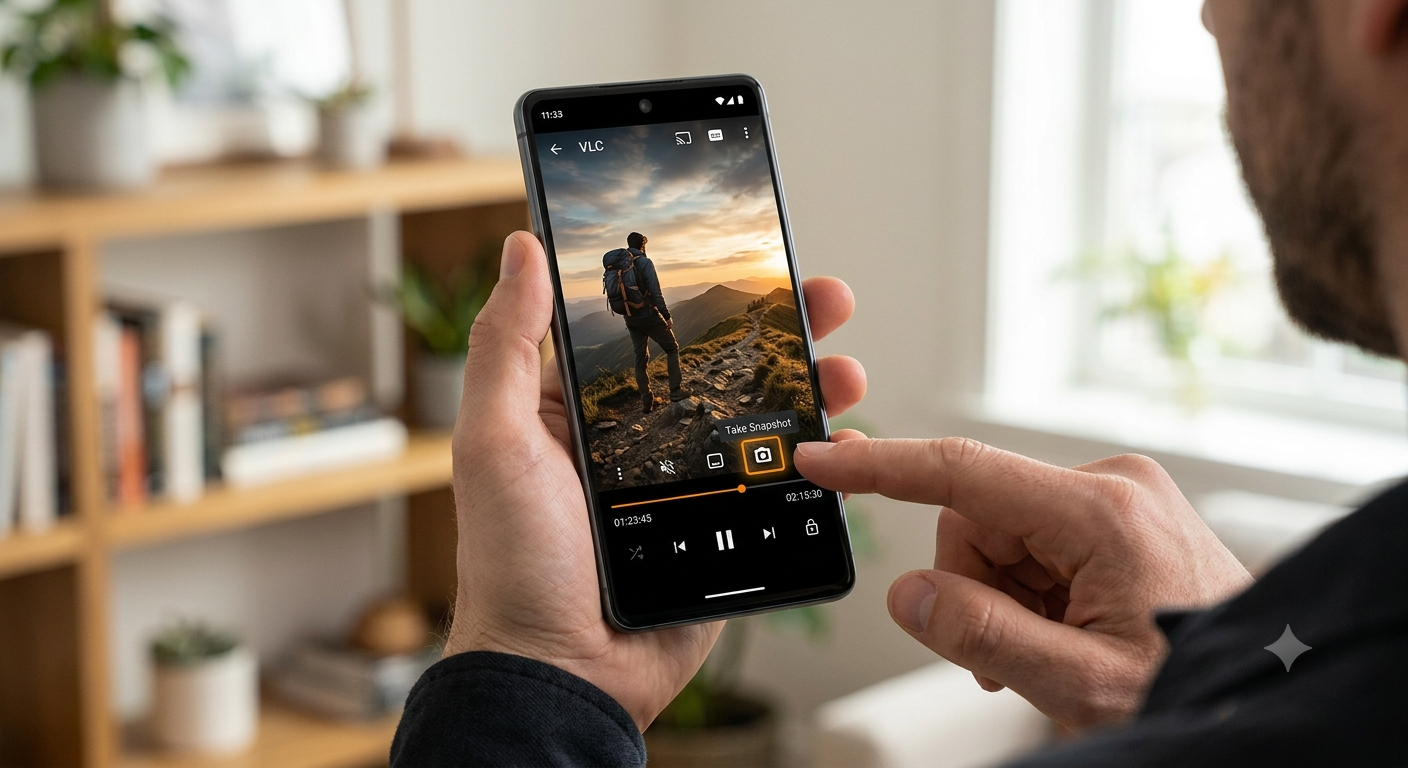
How to Grab a Frame Using VLC on Android/iPhone
The free VLC mobile app for Android and iPhone can extract a still frame from a video by pausing at the moment you want and using the app's built-in snapshot or screenshot feature, offering a mobile version of the same frame-grabbing capability found in VLC's desktop software.
VLC's mobile app is a genuinely capable free option for anyone who wants to extract frames directly on their phone, without needing a computer. This guide covers the process on both platforms, along with the differences worth knowing between the mobile and desktop versions.
Installing VLC on your phone
VLC for Android and iPhone is available free from the Google Play Store and Apple App Store respectively. It's the official mobile version of the same well-known open-source media player used widely on desktop computers.
Grabbing a frame on Android
- Installing VLC on your phone
- Grabbing a frame on Android
- 1. Open your video in VLC
- 2. Pause at your chosen moment
- 3. Take the snapshot
- 4. Find your saved frame
- Grabbing a frame on iPhone
- 1. Open your video in VLC
- 2. Pause at your chosen moment
- 3. Use the snapshot feature
- 4. Access your saved frame
- How the mobile app differs from desktop VLC
- Alternative: using your phone's built-in screenshot as a backup
- Getting the best quality frame on mobile
- Common issues and fixes
- Conclusion
- FAQ
1. Open your video in VLC
Launch the VLC app and browse to your video file, either stored locally on your device or accessible through the app's network and cloud storage options.
2. Pause at your chosen moment
Play the video and tap to pause at the exact point you want to capture. VLC's mobile app includes basic scrubbing controls, and some versions support frame-by-frame stepping through a long-press or dedicated control, depending on your specific app version.
3. Take the snapshot
Look for a snapshot or capture option within the app's playback controls or menu — this varies slightly by version, but is generally accessible through an on-screen icon or the options menu while the video is paused.
4. Find your saved frame
Captured frames are typically saved within the app's own media library or directly to your device's photo gallery, depending on your specific version and settings.
- Capture a Frame from a Twitch Clip or VOD
- How to Turn Video Frames into a Photo Album
- 5 Best Chrome Extensions to Grab Video Frames
Grabbing a frame on iPhone
1. Open your video in VLC
Launch the VLC app on your iPhone and select your video file from the app's library.
2. Pause at your chosen moment
Tap to pause playback at your target moment, using the scrubbing controls to get as close as possible before fine-tuning.
3. Use the snapshot feature
Similar to Android, look for a snapshot option within the playback controls, generally accessible as an icon or through the app's menu while paused.
4. Access your saved frame
Depending on your settings, the captured frame saves either within VLC's own library or directly to your iPhone's Photos app.
How the mobile app differs from desktop VLC
Simpler interface overall. The mobile version focuses on core playback and basic snapshot functionality, without the extensive advanced settings menu found in the desktop version, like the Scene Video Filter for bulk automated extraction.
No true bulk extraction. Unlike desktop VLC, which can automatically extract hundreds of frames using the Scene filter, the mobile app is generally limited to manual, one-at-a-time snapshot capture.
Format support may vary slightly. While VLC mobile handles the vast majority of common video formats well, its exact codec support can differ slightly from the desktop version depending on your specific device and app version.
Alternative: using your phone's built-in screenshot as a backup
If VLC's snapshot feature isn't working as expected, or you're looking for a quicker alternative for a single frame, your phone's standard screenshot shortcut remains a reliable fallback:
Recommended Articles
 SOFTWARE TUTORIALS
 SOFTWARE TUTORIALS
 SOFTWARE TUTORIALS
 SOFTWARE TUTORIALS
- iPhone: side button plus volume up
- Android: power button plus volume down
This captures your entire screen rather than pulling from the video's native resolution, so it's a lower-quality option compared to VLC's dedicated snapshot feature, but it works reliably as a backup when needed.
- How to Find the Exact Frame Timestamp Using YouTube Subtitles
- How to Take a Scrolling Screenshot on Any Device
- How to Grab Frames in DaVinci Resolve
- Keyframe vs a Regular Frame
Getting the best quality frame on mobile
Use the original, highest-quality video file when possible. If you have a choice between a compressed copy and the original file, starting from the highest-quality source available gives the best extraction result, same as on desktop.
Avoid extracting during fast motion. Motion blur is part of the original recording and applies equally whether you're extracting on mobile or desktop.
Check your phone's storage settings. If captured frames are saving to a lower-quality or unexpected location, checking VLC's specific save settings within the app can help locate and adjust where full-quality frames are actually being stored.
Common issues and fixes
The snapshot feature isn't visible in my version. VLC's mobile interface has changed across different app updates, so if you can't find the feature, checking for an app update or referring to VLC's current mobile documentation can help locate the correct current menu location.
The captured frame looks lower quality than expected. Confirm you're extracting from the original video file rather than a compressed copy, and double-check that hardware-accelerated playback settings within the app aren't affecting captured quality, similar to a known desktop VLC quirk.
VLC won't open my video file on mobile. While VLC generally supports a very broad range of formats, an unusual or newer codec occasionally causes compatibility issues — checking for an app update, or converting the file to a more common format first, are the two main troubleshooting steps.
Conclusion
VLC's free mobile app brings genuine frame-extraction capability to Android and iPhone, covering the core need of pausing and capturing a still frame directly from your phone without requiring a computer. It's simpler than the desktop version, particularly lacking the bulk automated extraction features found there, but for grabbing an occasional frame while on the go, it's a reliable, completely free option worth having installed.
FAQ
Is VLC's mobile app free, the same as the desktop version?
Yes, VLC for Android and iPhone is completely free, with no watermarks or paid tiers, consistent with the desktop version's open-source, free nature.
Can I extract multiple frames automatically using VLC mobile?
No, the mobile app is generally limited to manual, one-at-a-time snapshot capture, unlike desktop VLC's Scene Video Filter, which supports full automated bulk extraction.
Does VLC mobile support the same video formats as desktop VLC?
It supports the vast majority of common formats well, though exact codec compatibility can occasionally differ slightly depending on your specific device and app version.
Where do frames captured with VLC mobile get saved?
This depends on your specific app version and settings, but captured frames typically save either within VLC's own media library or directly to your device's photo gallery.
Is my phone's built-in screenshot as good as VLC's snapshot feature?
Generally no VLC's snapshot pulls from the video's native decoded resolution, while a standard screenshot is limited to your screen's resolution and includes any app interface elements around the video.