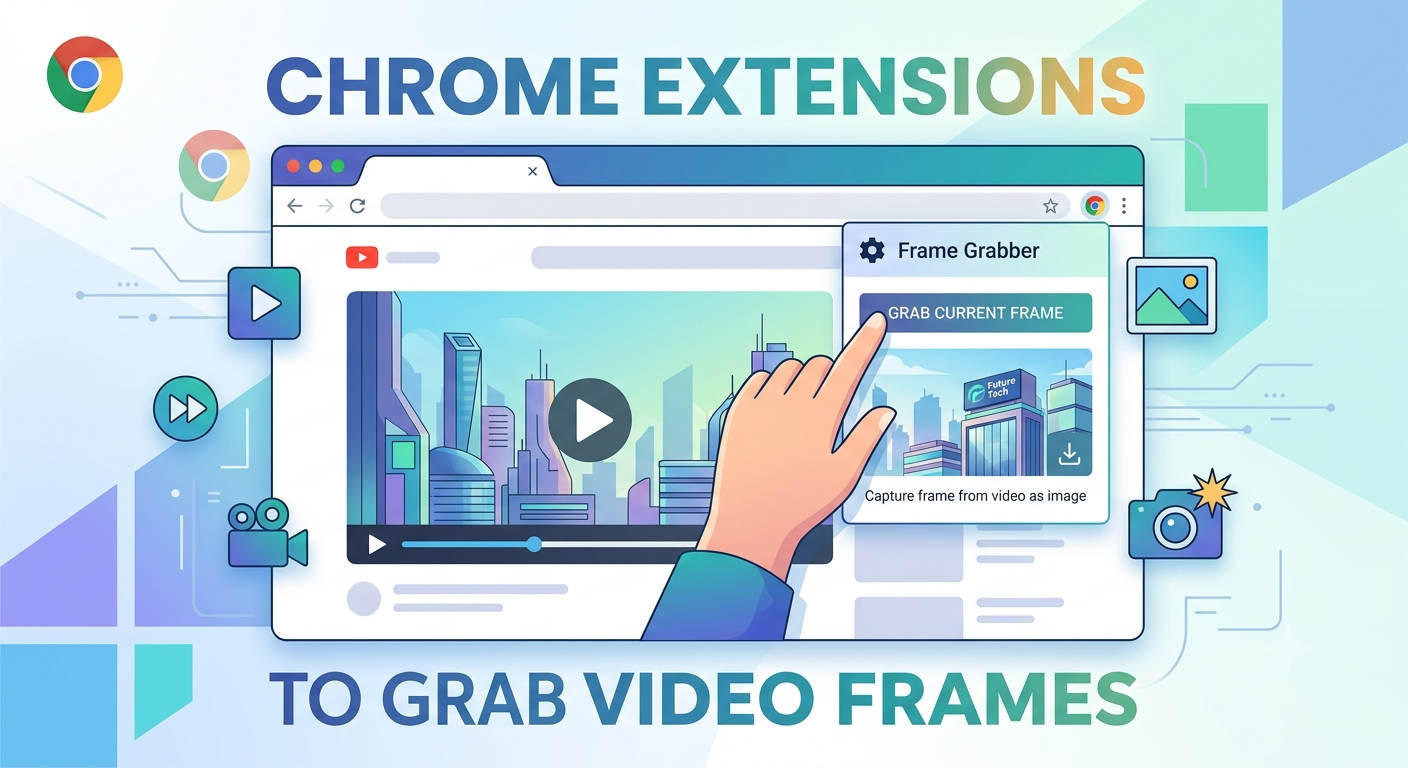
5 Best Chrome Extensions to Grab Video Frames
Chrome extensions built for frame grabbing let you capture a still image directly from a playing video without leaving the page or copying a link into a separate tool, making them a convenient option for anyone who regularly needs quick frames while browsing.
This guide covers the different categories of extensions worth knowing about, what to look for in a trustworthy one, and how they compare to using a standalone online frame grabber or desktop software instead.
Why use a browser extension instead of a separate tool
Extensions integrate directly into your browsing experience, which offers a couple of real conveniences:
- No copying and pasting links. Since the extension works directly within the page you're already viewing, there's no need to copy a URL and switch to a different site or tool.
- Works across many sites at once. A good extension typically works on any page with a standard video player, not just one specific platform.
- Faster for frequent, casual use. If you find yourself grabbing frames often throughout a normal browsing session, having the tool built into your toolbar saves repeated steps.
Categories of frame-grabbing extensions
- Why use a browser extension instead of a separate tool
- Categories of frame-grabbing extensions
- What to look for in a trustworthy extension
- How extension-based extraction compares to other methods
- General workflow for most frame-grabbing extensions
- Limitations to keep in mind
- When a standalone tool might serve you better
- Conclusion
- FAQ
Screenshot-and-crop extensions. These capture whatever is currently visible in your browser tab, similar to a regular screenshot, but often include built-in cropping tools to quickly remove the browser interface around the video afterward.
Video-frame-specific extensions. These are built specifically to interact with a page's video player directly, capturing the actual video frame at native resolution rather than a screenshot of your visible tab, generally producing a cleaner, higher-quality result.
Video download extensions with frame export. Some extensions primarily focused on downloading videos also include a secondary frame-export feature as part of their broader toolset.
- How to Find the Exact Frame Timestamp Using YouTube Subtitles
- How to Take a Scrolling Screenshot on Any Device
- How to Grab Frames in DaVinci Resolve
- Keyframe vs a Regular Frame
What to look for in a trustworthy extension
Since browser extensions can request fairly broad permissions to interact with the pages you visit, it's worth being more careful evaluating these than a standalone website tool:
- Check the permissions it requests. A frame-grabbing extension needing access to read and modify data on every website you visit is fairly standard for this type of tool, but be wary of extensions requesting permissions that seem unrelated to their stated function.
- Look at reviews and install numbers. Established extensions with a long history and many reviews are generally safer bets than obscure, recently published ones with few users.
- Check how recently it's been updated. An actively maintained extension is more likely to work reliably with current websites and browser versions.
- Read the privacy policy if one is provided, especially for anything that processes or stores video content you're capturing.
How extension-based extraction compares to other methods
Compared to online frame grabber websites: extensions save you a step by working directly within the page, but a dedicated website tool often gives more precise scrubbing and timestamp controls, since it's built around a full player interface rather than a lightweight toolbar addition.
Compared to desktop software like VLC: extensions are far more convenient for content you're already viewing in a browser, but desktop tools remain better for bulk extraction, working with local files, and situations where you'd rather not upload or process anything through a browser add-on.
Recommended Articles
 COMPARISONS AND BEST TOOLS
 COMPARISONS AND BEST TOOLS
 COMPARISONS AND BEST TOOLS
 COMPARISONS AND BEST TOOLS
General workflow for most frame-grabbing extensions
While specific steps vary between extensions, the general process typically follows this pattern:
- Install the extension from the Chrome Web Store and pin it to your toolbar for easy access.
- Navigate to the page with the video you want to capture.
- Play the video and pause at your chosen moment, using the video's own controls for precision if the extension doesn't offer its own frame-stepping.
- Click the extension's icon in your toolbar to trigger the capture.
- The extension either downloads the frame directly or opens a preview where you can crop, adjust, or confirm before saving.
Limitations to keep in mind
Not every site works equally well. Some extensions struggle with certain video players, particularly ones using more unusual or heavily customized playback technology, and may fall back to a lower-quality screenshot-style capture in those cases.
Quality can vary by extension type. Screenshot-and-crop style extensions are limited to your screen's resolution and browser window size, similar to a regular screenshot, while video-frame-specific extensions that interact directly with the player generally produce sharper results closer to the video's native resolution.
Permissions add a small trust consideration. Since extensions run within your browser across the sites you visit, it's worth being a little more selective about which one you install compared to a standalone website tool you only visit occasionally.
When a standalone tool might serve you better
If you only need to grab frames occasionally, installing a dedicated extension may not be worth the added browser permissions for infrequent use an online frame grabber website, used only when needed, avoids that ongoing consideration entirely. Extensions make the most sense for people who find themselves grabbing frames regularly enough that the convenience clearly outweighs the extra permission footprint.
Conclusion
Chrome extensions for frame grabbing offer real convenience for anyone who regularly captures still images from video while browsing, saving the step of copying a link into a separate tool. The trade-off is a bit more trust required, given the broader permissions these extensions typically need, so choosing an established, actively maintained option matters more here than with a standalone website tool you'd only visit occasionally.
FAQ
Are frame-grabbing Chrome extensions safe to use?
Generally yes for well-established, actively maintained extensions with a solid review history, though it's worth checking requested permissions and avoiding obscure, rarely-updated options.
Do extensions produce better quality frames than online tools?
This varies by extension type ones that interact directly with the video player generally produce sharper results than screenshot-and-crop style extensions, which are limited to your screen's resolution.
Can I use a Chrome extension to grab frames from any website?
Most work across a wide range of sites with standard video players, though some heavily customized or unusual player setups may not be fully compatible with every extension.
Is it better to use an extension or a standalone frame grabber website?
For frequent, regular use, an extension saves repeated steps; for occasional, infrequent needs, a standalone website avoids the extra browser permissions an extension requires.
Do frame-grabbing extensions work on mobile browsers?
Most Chrome extensions are designed for desktop browsers mobile browser extension support is much more limited, so a mobile-friendly online tool or your device's screenshot feature is generally the better option on a phone.