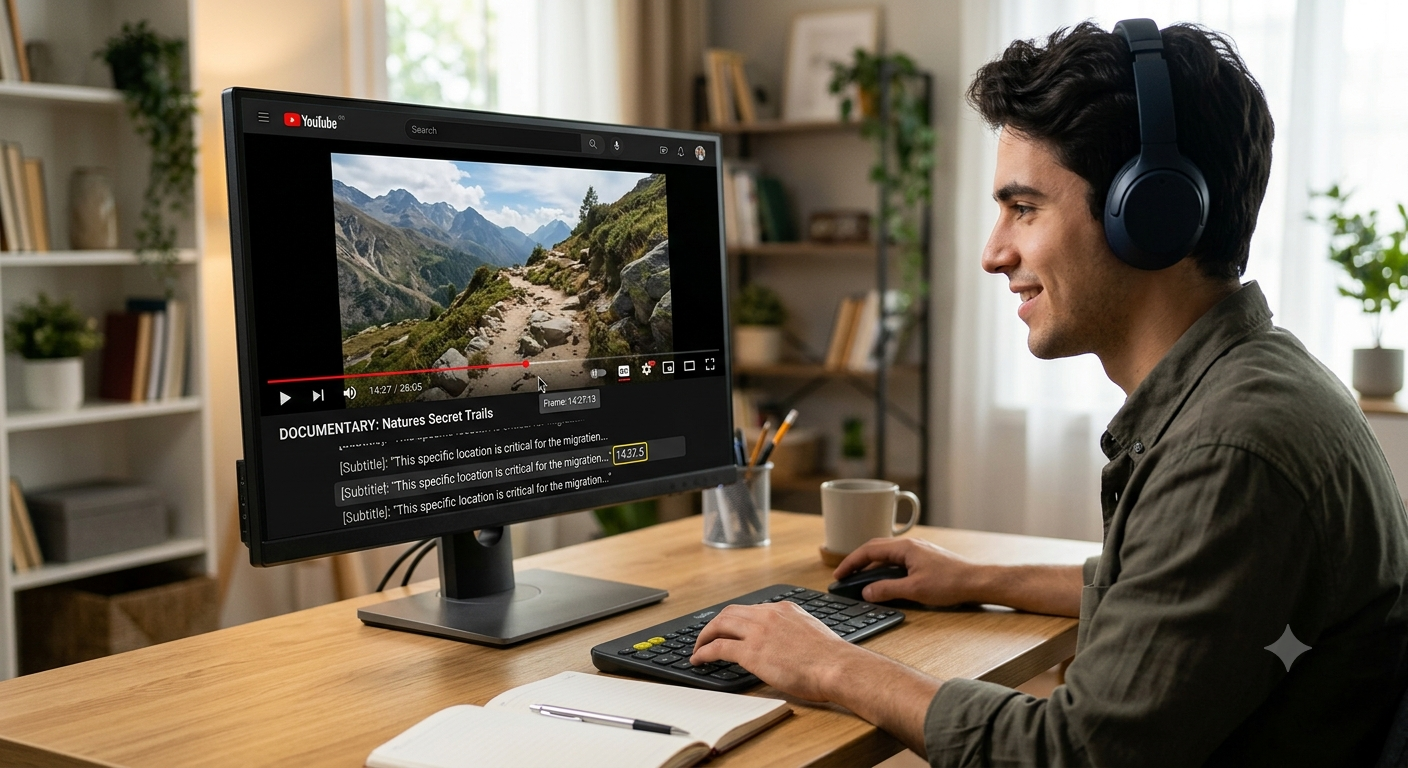
How to Find the Exact Frame Timestamp Using YouTube Subtitles
You can use YouTube's built-in transcript feature to quickly find the exact timestamp of a specific spoken moment in a video, then jump straight to that point instead of manually scrubbing through the entire video to find it.
This is especially useful for long videos podcasts, lectures, interviews where you know roughly what was said but don't want to guess at the timestamp by dragging the timeline. This guide covers how to access the transcript feature, search within it, and use it to land precisely on the frame you want to extract.
Why the transcript feature is useful for frame extraction
Manually scrubbing through a long video to find one specific moment is slow and imprecise, especially if you only remember what was said rather than roughly when it happened. YouTube's transcript feature solves this by giving you a searchable, clickable text version of the video's spoken content, each line linked directly to its exact timestamp.
Open the video's transcript
- Why the transcript feature is useful for frame extraction
- Open the video's transcript
- Search within the transcript for your moment
- Click the timestamp to jump to that moment
- Fine-tune to the exact frame
- Extract the frame
- When the transcript feature isn't available
- Using this method for non-verbal moments
- Accuracy of auto-generated captions
- A related tip: using timestamped comments
- Conclusion
- FAQ
- Open the YouTube video in a browser (this feature works best on desktop, though some mobile apps support a similar option).
- Below the video, find the "..." (more) button near the description.
- Click it, then select Show transcript from the menu that appears.
- A scrollable panel opens alongside the video, showing the full transcript broken into timestamped segments.
Not every video has this option available it depends on whether captions exist for that specific video, either added by the creator or automatically generated by YouTube.
- How to Screen Record and Grab a Frame from a Facebook Video
- How to Extract Frames from Video Using Adobe Premiere Pro
- Best Free Screenshot Tools for Windows and Mac
- How to Create a Storyboard from a Video Automatically
Search within the transcript for your moment
Once the transcript panel is open, you can scan through it visually, or in some browsers use your browser's own find function (typically triggered with Ctrl+F or Command+F) to search for specific words or phrases within the transcript text.
Finding the exact phrase you remember instantly locates the corresponding timestamp, without needing to scrub or guess.
Click the timestamp to jump to that moment
Each line in the transcript is clickable clicking any line jumps the video player directly to that exact moment, ready for you to fine-tune with frame-by-frame stepping if needed.
Fine-tune to the exact frame
Since the transcript gives you a timestamp tied to when a word was spoken, you may still need to nudge slightly forward or backward to land on the precise visual frame you want, especially if you're looking for a specific facial expression or visual moment rather than the exact instant of speech. Use the comma and period keys to step frame by frame from that starting point.
Extract the frame
Once you've confirmed the exact frame using frame-by-frame stepping, use your preferred extraction method:
- Copy the video's link and paste it into an online frame grabber, then scrub to the same timestamp and download the frame.
- If you've downloaded the video locally, open it in a tool like VLC and use the snapshot feature at that same timestamp.
When the transcript feature isn't available
Some videos don't have captions at all, in which case the transcript panel option won't appear. In this situation:
Recommended Articles
 YOUTUBE FRAME GRABBING
 YOUTUBE FRAME GRABBING
 YOUTUBE FRAME GRABBING
- Check if auto-generated captions are simply turned off for that video, which sometimes differs from whether the transcript panel itself is available.
- Fall back to manual scrubbing, using the video's chapter markers if the creator has added them, which can help narrow down a general area even without a searchable transcript.
- Check the video description, since some creators manually add timestamps for key sections directly in the description text.
Using this method for non-verbal moments
The transcript approach works best when you're looking for a moment tied to speech. For a purely visual moment with no relevant dialogue a specific action, a scene change, or a visual detail this method won't help directly, and standard scrubbing or chapter markers remain the better approach for locating that kind of moment.
- How to Extract a Frame for a YouTube Thumbnail
- Best Free vs Paid Frame Grabber Tools Compared
- How to Screenshot on iPhone (All iOS Versions)
- How to Grab Frames Using QuickTime Player on Mac
Accuracy of auto-generated captions
Auto-generated captions, while generally quite good, aren't always perfectly accurate, especially with accents, background noise, technical terminology, or overlapping speech. If a search within the transcript doesn't turn up the phrase you're looking for, it's worth trying alternate wording or spelling, since the automatic transcription may have captured the words slightly differently than what was actually said.
A related tip: using timestamped comments
Some popular videos have viewer comments that reference specific timestamps for notable moments, which can serve as a secondary way to quickly locate an interesting frame, especially for content where many viewers have already flagged particular highlights.
Conclusion
YouTube's transcript feature turns a long, hard-to-scrub video into something you can search like a document, jumping straight to the moment tied to specific spoken words rather than guessing your way through the timeline. Combined with frame-by-frame stepping to fine-tune the exact visual moment, it's one of the fastest ways to locate a precise frame in lengthy content like interviews, lectures, or podcasts.
FAQ
Does every YouTube video have a transcript available?
No, only videos with captions either added by the creator or auto-generated by YouTube will show the transcript option, and some videos don't have captions at all.
Can I use the transcript feature on mobile?
Some YouTube mobile apps support a similar transcript feature, though the exact steps and availability can vary depending on your device and app version.
Are auto-generated captions accurate enough to rely on for finding a moment?
Generally yes, though accuracy can vary with accents, background noise, or technical terms if a search doesn't find what you're looking for, trying alternate wording is worth a shot.
Can the transcript help me find a purely visual moment with no dialogue?
Not directly, since it's built around spoken content for a visual-only moment, standard scrubbing or chapter markers, if available, are the better approach.
Does using the transcript feature affect the video's actual playback quality?
No, it's purely a navigation tool for finding timestamps it has no effect on the video's resolution or quality when you go on to extract a frame.