
How to Extract High-Quality Frames from 4K YouTube Videos
You can extract high-quality frames from a 4K YouTube video by first setting the player to its highest available quality, then using a frame grabber that pulls directly from the video stream rather than a screenshot of your screen.
4K video gives you significantly more detail to work with than standard HD, but only if every step of the extraction process actually preserves that resolution this guide covers exactly how to make sure it does, plus why some 4K extractions still come out looking softer than expected.
Why 4K matters for frame extraction
A 4K video contains roughly four times the pixel detail of a standard 1080p video. That extra detail means a single extracted frame has enough resolution to be cropped, zoomed, printed, or used as a wallpaper without looking soft something a 1080p frame often can't handle as well.
This makes 4K sources especially valuable for anything where you plan to use just part of the frame, since you have far more pixels to crop into before quality starts to suffer.
Step 1: Confirm the video is actually available in 4K
- Why 4K matters for frame extraction
- Step 1: Confirm the video is actually available in 4K
- Step 2: Set playback to the highest quality before capturing
- Step 3: Find the exact frame
- Step 4: Use a frame grabber, not a screen capture
- Why some 4K frames still look soft
- Getting the most detail out of your extracted frame
- Common questions about 4K frame extraction
- Conclusion
- FAQ
Not every YouTube video that looks sharp is actually uploaded in 4K. Check the quality settings in the player if 2160p appears as an option, the video is true 4K. If the highest option is 1080p, the source itself is capped there, and no extraction method can produce genuine 4K detail from it.
Step 2: Set playback to the highest quality before capturing
This is the single most important step and the one most people skip. YouTube automatically adjusts video quality based on your connection speed and device, often defaulting to a much lower resolution than what's actually available. Before extracting any frame:
- Open the video's settings menu in the player.
- Select Quality.
- Manually choose 2160p (4K) rather than leaving it on Auto.
If your internet connection is slow, the video may buffer more while playing at this setting, but the quality of anything you extract will be dramatically better.
Step 3: Find the exact frame
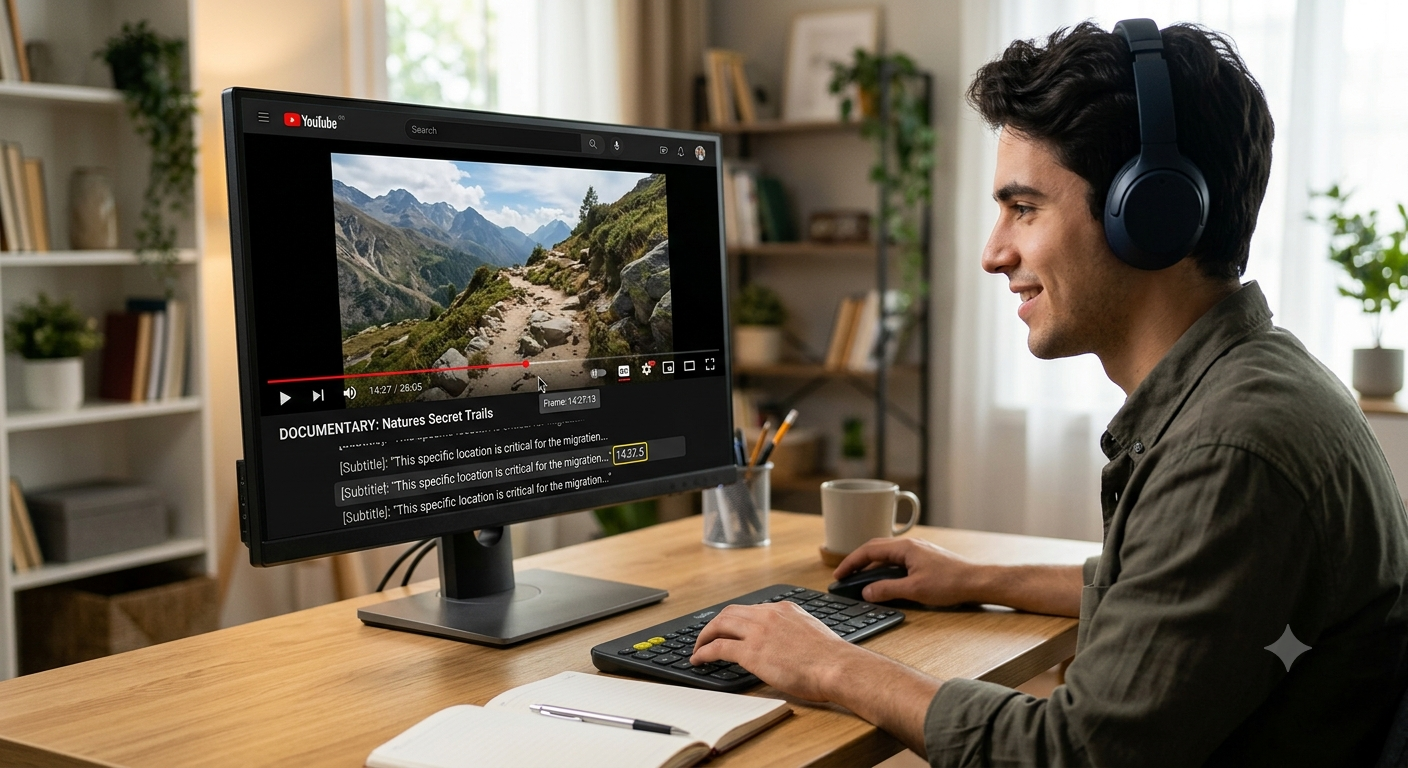
Play the video and use frame-by-frame stepping to land precisely on your chosen moment rather than dragging the timeline, which is much less accurate. Note the timestamp once you've found it.
Step 4: Use a frame grabber, not a screen capture
A regular screenshot only captures what's displayed on your screen, which is limited to your monitor's resolution and browser window size — even if the underlying video is 4K, your screenshot might only be 1080p or lower depending on your display setup.
A dedicated frame grabber instead pulls the frame from the actual video stream at its native resolution:
- Copy the YouTube video's link.
- Paste it into an online frame grabber tool.
- Scrub to the same timestamp you found in Step 3.
- Capture and download the frame.
This preserves the full detail of the 4K stream rather than being limited by whatever your screen happened to be displaying.
Why some 4K frames still look soft
Even with all the right settings, a few things can still limit quality:
Motion blur. This is baked into the original recording by the camera, and no amount of resolution fixes it. A fast-moving subject captured at 4K will still show blur in that specific frame 4K only helps with detail in areas that were actually still.
Heavy compression. YouTube compresses even 4K uploads to manage file sizes and streaming bandwidth. Busy, high-detail scenes compress less cleanly than simple ones, so a 4K frame of a complex scene can still show some softness or blockiness compared to the truly uncompressed original file.
Recommended Articles
 YOUTUBE FRAME GRABBING
 YOUTUBE FRAME GRABBING
 YOUTUBE FRAME GRABBING
Re-uploaded or re-encoded content. If a video has been downloaded, edited, and re-uploaded multiple times across different platforms, each pass adds another layer of compression, even if the final upload is still technically labeled 4K.
Browser or device limitations. Some browsers or older devices may not decode 4K streams at full quality by default. If your extracted frames consistently look softer than expected, try the extraction process on a different browser or a more capable device.
Getting the most detail out of your extracted frame
Once you've downloaded a high-quality 4K frame, a few habits help preserve that detail:
- Save as PNG rather than JPG if you plan to edit further, since PNG doesn't introduce additional compression loss.
- Avoid repeated re-saving in JPG format, which compounds quality loss each time.
- Crop rather than resize down and back up, if you need a smaller image, crop directly rather than shrinking and later trying to enlarge it again.
- Check the frame at 100% zoom in an image viewer before deciding it's usable, since thumbnails in a file browser can make even a soft frame look artificially sharp.
Common questions about 4K frame extraction
Does the frame grabber tool itself affect quality?
Yes, to some degree a tool that resizes or compresses the frame during processing will produce a lower-quality result than one that preserves the native resolution. If quality matters a lot for your use case, test the same timestamp across a couple of tools and compare.
Can I upscale a 1080p frame to look like 4K?
Upscaling tools can enlarge an image and use algorithms to smooth the result, but they're generating estimated detail rather than recovering anything that was actually recorded. It can look better than a plain resize, but it isn't the same as a genuine 4K source.
Why does the same timestamp look different quality on different days?
YouTube sometimes re-processes uploaded videos, and your own connection speed can affect which quality tier loads by default even after you've selected 4K manually always double check the quality setting each time before capturing.
Conclusion
Getting a genuinely sharp frame from a 4K YouTube video comes down to three things: confirming the video is truly uploaded in 4K, manually forcing the player to that quality before capturing, and using a frame grabber that pulls from the stream itself rather than a screenshot of your display. Get those right, and a 4K source gives you dramatically more usable detail than standard HD more than enough to crop, zoom, or use as a high-resolution wallpaper or print.
FAQ
How do I know if a YouTube video is really in 4K?
Check the quality settings menu in the player if 2160p appears as an option, the video was uploaded in true 4K resolution.
Why does my extracted frame look lower quality than 4K even with the right settings?
This is usually motion blur, heavy compression on a busy scene, or a browser not decoding the full 4K stream. Try a still moment, a simpler scene, or a different browser to compare.
Is a screenshot enough for 4K frame extraction?
No a screenshot is limited to your screen's resolution and browser window size, which is often much lower than the video's actual 4K resolution. A frame grabber pulls directly from the stream instead.
Does watching in 4K use more data?
Yes, significantly more than 1080p, so keep this in mind if you're on a limited data plan while extracting frames.
Can I extract 4K frames on a phone?
Yes, as long as your phone's browser supports 4K playback and you manually set the quality to 2160p before using a frame grabber tool.