7 Best Free Frame Grabber Tools in 2026
The best free frame grabber tools in 2026 fall into two categories: browser-based online tools that need no installation, and downloadable software that offers more control and works entirely offline.
Which one is "best" really depends on what you're trying to do a quick single frame from a YouTube video calls for a different tool than extracting hundreds of frames from a private video file. This guide breaks down seven solid free options and exactly when each one makes sense.
What to look for in a frame grabber
Before comparing specific tools, it helps to know what actually separates a good one from a mediocre one:
- No forced watermark on the exported image
- Native resolution output rather than downscaling your frame
- Precise timestamp or frame-by-frame navigation, not just rough timeline dragging
- Reasonable file size limits if it's an online tool
- Batch extraction if you need more than a handful of frames
Keep these in mind as you weigh the options below.
1. Online browser-based frame grabbers
Best for: quick, single-frame extraction from a video link, no installation needed
Online frame grabbers let you paste a video link, scrub to a moment, and download the frame directly in your browser. They're the fastest option when you just need one image and don't want to install anything.
Strengths: instant access from any device, no software to manage, works on phones and tablets too. Limitations: usually capped at a maximum file size or video length, and requires an internet connection.
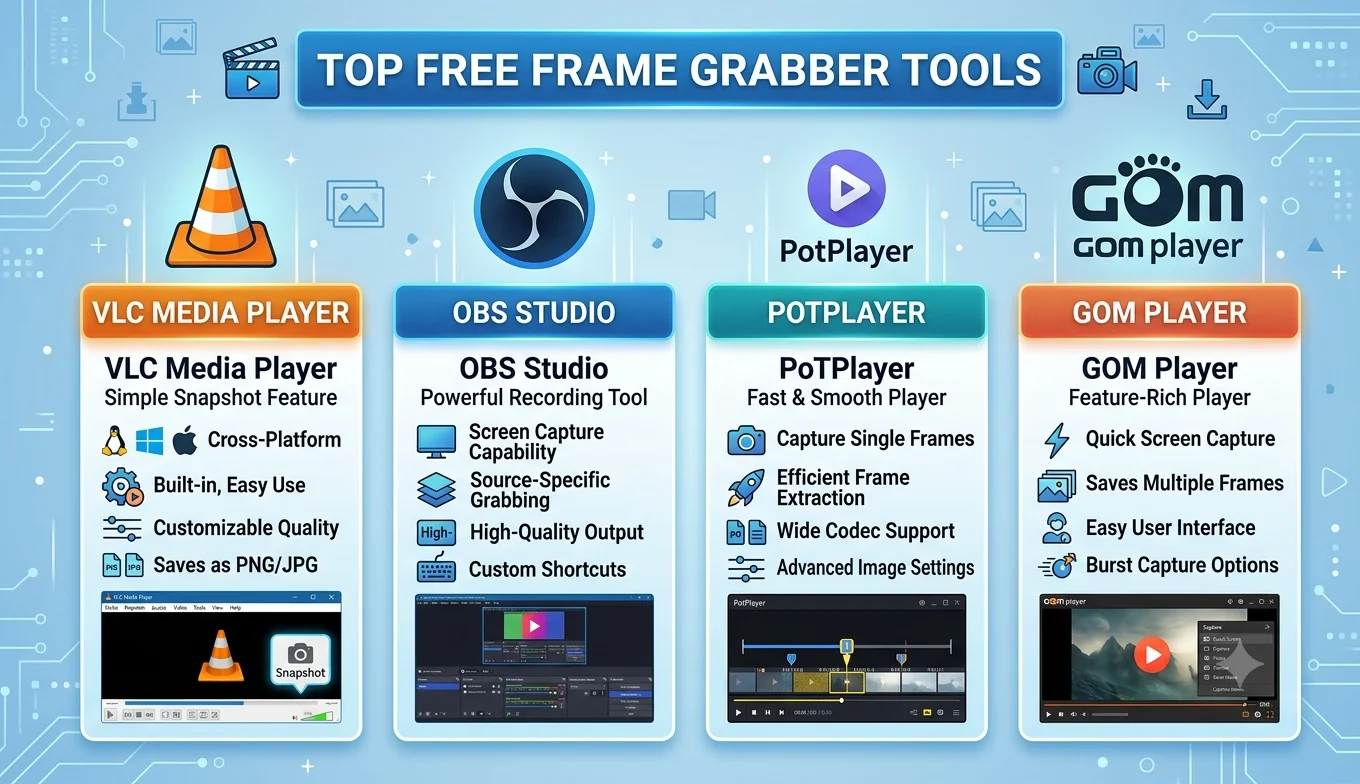
2. VLC Media Player
Best for: local video files, both single frames and bulk extraction
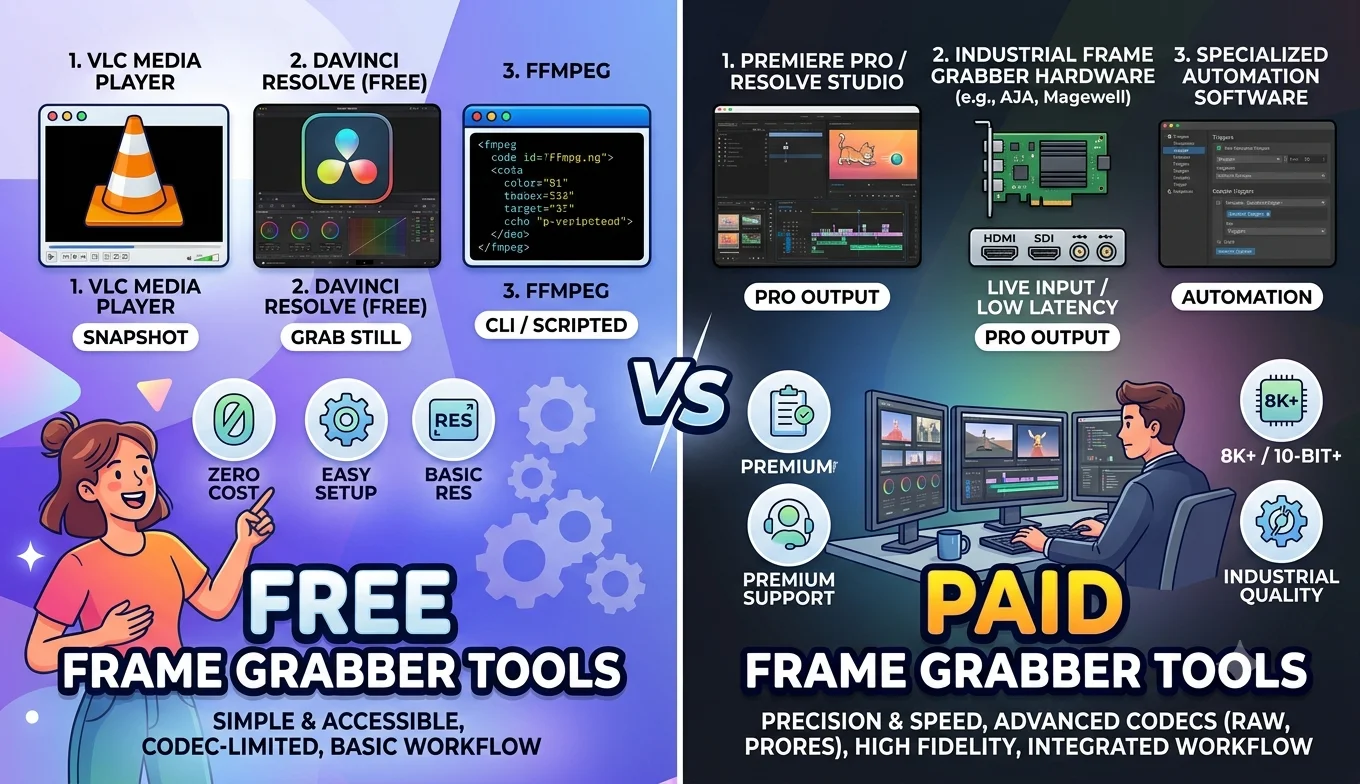
VLC is free, open-source, and handles nearly every video format without needing extra codecs. Its snapshot feature grabs a single frame instantly, and its Scene Video Filter can automatically extract hundreds of frames at a set interval, which is ideal for building a storyboard or dataset.
Strengths: completely offline, no file size limits, no watermark, works identically on Windows, Mac, and Linux. Limitations: the bulk extraction feature is buried in advanced settings, which takes a little digging to find the first time.
3. FFmpeg
Best for: precise, scriptable, automated extraction at scale
FFmpeg is a free command-line tool that can extract frames with extremely precise control specific timestamps, exact intervals, custom output resolutions, and more. It's the tool of choice for anyone comfortable with typing commands rather than clicking through a graphical interface.
Strengths: unmatched precision and automation, completely free, works on every major operating system. Limitations: no visual interface, so there's a learning curve if you've never used a command line before.
4. Windows Photos App
Best for: Windows users who want a simple built-in option with no extra downloads
The Photos app that comes preinstalled on Windows can open a video, pause it, and save a frame directly, making it a convenient zero-install option if you're already on a Windows machine and only need occasional single frames.
Strengths: already installed on most Windows PCs, simple interface, no learning curve. Limitations: lacks batch extraction and fine frame-by-frame stepping compared to dedicated tools.
5. QuickTime Player (Mac)
Best for: Mac users who want a simple built-in option
Similar to the Windows Photos app, QuickTime Player comes preinstalled on every Mac and can pause a video and export a still frame with just a couple of clicks.
Strengths: built into every Mac, no download required, clean and simple. Limitations: basic frame-by-frame navigation compared to more advanced tools, and Mac-only.
6. GIMP
Best for: extracting frames and doing detailed editing in the same session
Recommended Articles
 COMPARISONS AND BEST TOOLS
 COMPARISONS AND BEST TOOLS
 COMPARISONS AND BEST TOOLS
 COMPARISONS AND BEST TOOLS
GIMP is a free, open-source image editor that also supports opening video files as a sequence of layers, letting you extract a frame and immediately touch it up crop, adjust color, remove blemishes without switching between separate apps.
Strengths: combines extraction and editing in one free tool, powerful for anyone who wants to polish the frame afterward. Limitations: heavier and slower to learn than a dedicated frame grabber if editing isn't something you need.
7. OBS Studio (for recordings you control)
Best for: extracting frames from your own screen recordings, livestreams, or gameplay
OBS Studio is a free recording and streaming tool, but it's also useful here because any footage you record with it can then be opened in VLC, FFmpeg, or any other tool on this list for frame extraction. It's the best starting point if the video you want a frame from doesn't exist yet and you need to capture it first.
Strengths: completely free, high-quality recording, gives you full control over the source footage from the start. Limitations: it's a recording tool, not a frame extractor itself you'll still need a second tool afterward.
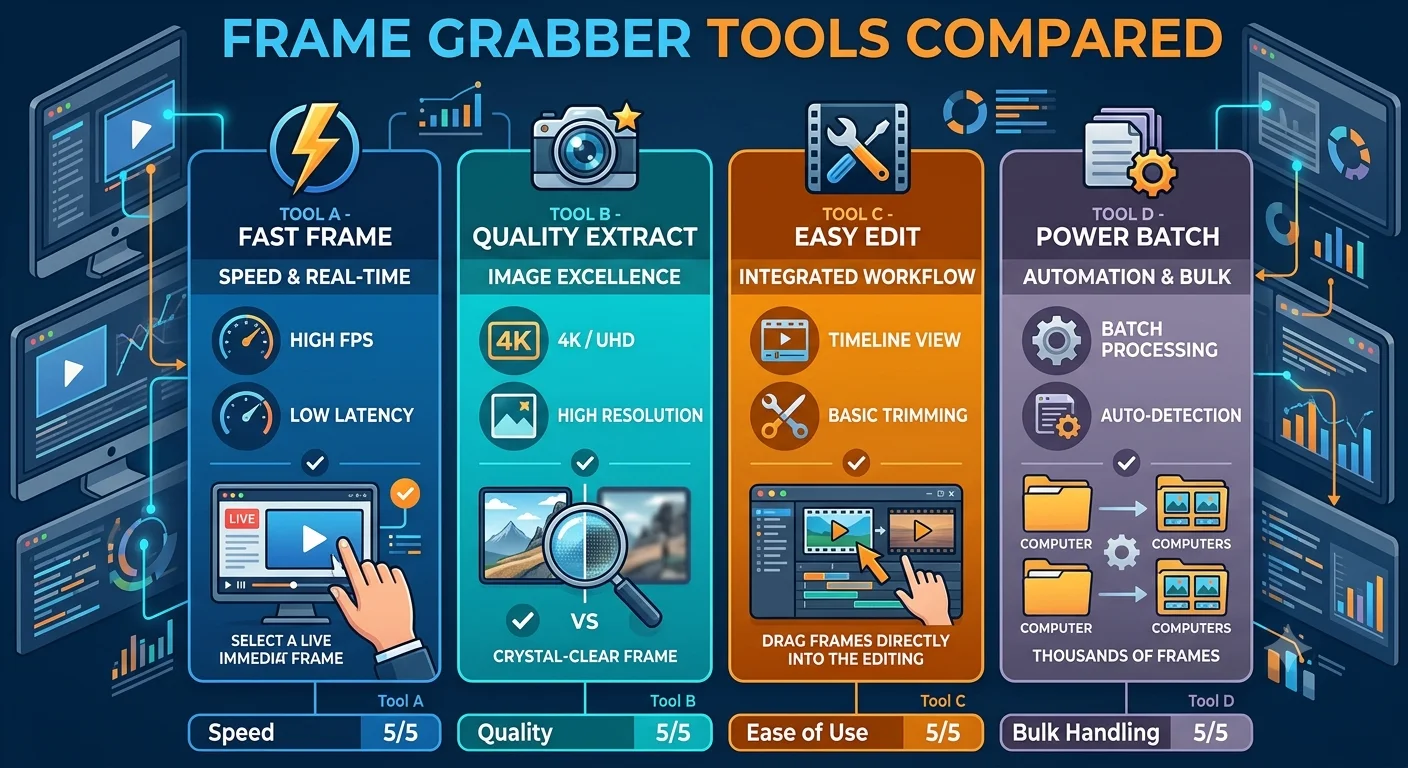
Quick comparison
| Tool | Type | Best for | Batch extraction |
|---|---|---|---|
| Online frame grabber | Browser-based | Quick single frames from links | Limited, tool-dependent |
| VLC | Desktop software | Local files, single or bulk | Yes (Scene filter) |
| FFmpeg | Command line | Automated, scriptable extraction | Yes, fully customizable |
| Windows Photos | Built-in (Windows) | Casual, occasional use | No |
| QuickTime Player | Built-in (Mac) | Casual, occasional use | No |
| GIMP | Image editor | Extraction plus editing | Limited |
| OBS Studio | Recording tool | Capturing footage to extract from later | Not applicable |
Which one should you actually pick?
- Need one frame from a YouTube or social video, right now? Use an online frame grabber nothing to install, done in under a minute.
- Working with a video file already saved on your computer? VLC covers almost every need, from a single snapshot to hundreds of frames.
- Comfortable with a command line and want full automation? FFmpeg gives you the most precise, scriptable control of anything on this list.
- Already on Windows or Mac and just need something occasional? The built-in Photos app or QuickTime Player is the path of least resistance.
- Planning to edit the frame right after extracting it? GIMP saves you from switching between two separate programs.
Conclusion
There's no single "best" frame grabber for everyone the right choice depends on where your video lives and how many frames you need. For quick one-off grabs from an online video, a browser-based tool wins on convenience; for local files and heavier extraction work, VLC or FFmpeg give you far more control, completely free and without watermarks. Picking based on your actual use case, rather than chasing a single "best" tool, will save you the most time.
FAQ
Is any frame grabber tool completely free with no limitations?
VLC and FFmpeg are both fully free with no watermarks, file size limits, or feature restrictions, since they're open-source projects rather than commercial products.
Do online frame grabbers add a watermark to downloaded frames?
This varies by tool always check before relying on one for anything you plan to publish, since some free online tools do add branding to exported images.
Which tool is best for extracting frames from a private video I recorded myself? VLC or FFmpeg, since both work entirely offline and never require uploading your file anywhere.
Can I extract frames from a video without any video editing experience?
Yes online frame grabbers, the Windows Photos app, and QuickTime Player are all designed for people with zero editing background.
What's the fastest way to extract dozens of frames at once?
FFmpeg's command-line automation or VLC's Scene Video Filter are both built specifically for bulk extraction and will save significant time over grabbing frames one at a time.