How to Take a Screenshot on Windows 11 (All Methods)
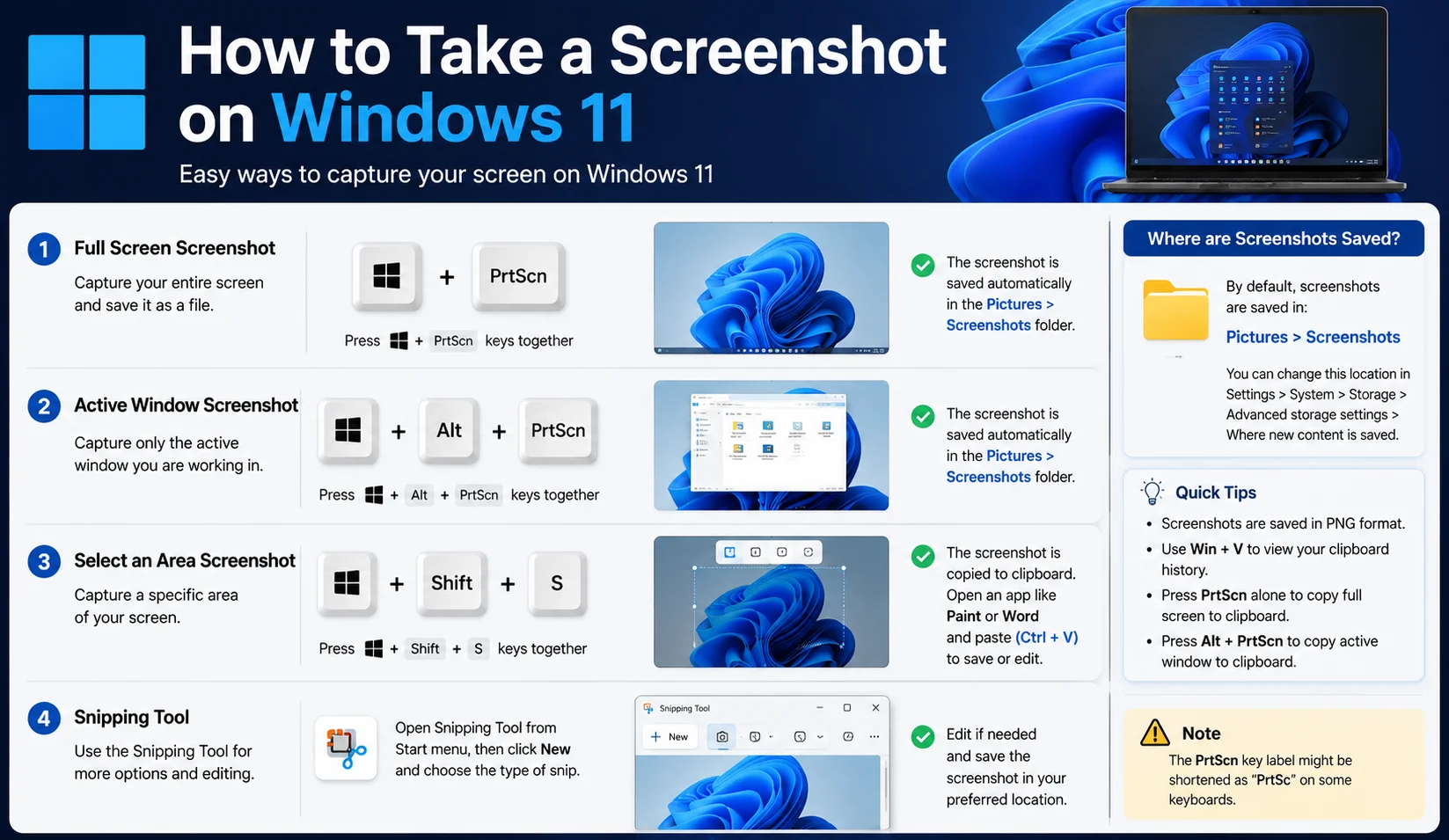
The fastest way to take a screenshot on Windows 11 is pressing Windows key + Shift + S, which opens the Snipping Tool overlay and lets you select exactly the area you want to capture.
Windows 11 actually gives you five different screenshot methods, and each one is better suited to a different situation. Some save automatically, some only copy to your clipboard, and some let you delay the capture or annotate afterward. This guide covers every method, where your files end up, and fixes for the most common problems people run into.
Method 1: Windows + Shift + S (best for most people)
This is Microsoft's modern default and the one worth memorizing.
- Press Windows + Shift + S.
- Your screen dims and a small toolbar appears at the top with four capture modes: rectangular, freeform, window, and full screen.
- Select your area the image is copied straight to your clipboard.
- Paste it (Ctrl+V) into any app, or click the notification that pops up in the bottom-right corner to open it in the Snipping Tool for editing and saving.
Why it's the best default: it's the only method that gives you a choice of capture shape (rectangle, freeform, window, or full screen) every single time, without digging into a separate app first.
Method 2: Print Screen key (full screen, saved automatically)
- Method 1: Windows + Shift + S (best for most people)
- Method 2: Print Screen key (full screen, saved automatically)
- Method 3: Print Screen alone (copy only)
- Method 4: Alt + Print Screen (active window only)
- Method 5: Snipping Tool app (delayed capture, editing)
- Where do Windows 11 screenshots get saved?
- Screenshotting on a laptop without a dedicated Print Screen key
- Editing and annotating after capture
- Taking a screenshot on a second monitor or specific display
- Conclusion
- FAQ
Press Windows + Print Screen (sometimes labeled PrtScn, PrtSc, or Prt Sc depending on your keyboard). This captures your entire screen and automatically saves it as a PNG file in Pictures > Screenshots, without needing to paste it anywhere.
This is the most "hands-off" method you don't even need to open an app afterward, since the file is already saved. It's the best choice if you're taking a lot of full-screen captures in a row and don't want to paste each one manually.
Method 3: Print Screen alone (copy only)
Pressing just Print Screen copies a full-screen image to your clipboard without saving a file useful when you only need to paste it once into a document, email, or chat and don't want a permanent file cluttering your Screenshots folder.
Method 4: Alt + Print Screen (active window only)
Press Alt + Print Screen to capture only the currently focused window, ignoring the rest of your desktop. This is copied to your clipboard, ready to paste. It's especially useful when you have several overlapping windows open and only want to show one clean app window without any background clutter.
Method 5: Snipping Tool app (delayed capture, editing)
Open the Snipping Tool app directly from the Start menu (type "Snipping Tool" and hit enter) for extra features beyond the basic shortcut from Frame Grabber:
- A built-in delay timer (3, 5, or 10 seconds) so you can open a menu, hover over something, or trigger a tooltip before the capture happens
- Basic annotation tools (pen, highlighter, ruler) for marking up the image right after capturing
- Direct save-as options after capturing, including choosing your own filename and folder rather than relying on the default location
- A simple screen recording mode in recent Windows 11 updates, in case you need a short video instead of a still image
Where do Windows 11 screenshots get saved?
- Windows + Print Screen: automatically saved to Pictures > Screenshots
- Windows + Shift + S and Snipping Tool: copied to clipboard only you must paste or manually save using the "Save As" option in the Snipping Tool app
- You can change the default Screenshots folder location in Settings > System > Storage > Advanced storage settings > Where new content is saved
If you can never find your screenshots, the fastest fix is typing "Screenshots" into File Explorer's search bar, or checking that the save location hasn't been redirected to a cloud folder like OneDrive, which some default Windows setups do automatically.
Recommended Articles
 SCREENSHOTS BY DEVICE
 SCREENSHOTS BY DEVICE
 SCREENSHOTS BY DEVICE
Screenshotting on a laptop without a dedicated Print Screen key
Many modern laptops shrink or combine keys, so Print Screen might require a function key combination like Fn + Windows + Space or Fn + PrtScn, depending on the manufacturer. If your laptop's keyboard doesn't have an obvious Print Screen key at all, Windows + Shift + S is the safer bet since it's a dedicated shortcut that doesn't rely on a legacy key.
Editing and annotating after capture
Screenshots taken with Windows + Shift + S trigger a small notification in the bottom-right corner. Clicking it (before it disappears after a few seconds) opens the image directly in the Snipping Tool's editor, where you can:
- Crop further if your initial selection wasn't perfect
- Draw arrows, circles, or freehand marks with the pen tool
- Highlight specific text or areas
- Save the final annotated version as a new file
If you miss the notification, your screenshot is still safely on the clipboard just paste it into Paint, Word, or any image editor to work with it.
Taking a screenshot on a second monitor or specific display
Windows + Shift + S lets you drag a selection freely across all connected monitors it treats your whole desktop as one continuous canvas, so you're not limited to your primary display. For a full-screen capture of just one monitor rather than all of them combined, click on that monitor first to make it active, then use Windows + Print Screen, which captures only the active display in a multi-monitor Windows 11 setup.
Conclusion
Windows 11 gives you five reliable ways to take a screenshot, and picking the right one comes down to what you're capturing. Windows + Shift + S is the best everyday default since it lets you choose the exact area, while Windows + Print Screen is faster when you just want the whole screen saved automatically. Once you know where your screenshots are saved and how to fix the most common permission or shortcut issues, this becomes a quick, second-nature task.
FAQ
How do I screenshot just one monitor in a dual-monitor setup?
Windows + Shift + S lets you drag a selection across only the monitor you want, it isn't limited to your primary display. For a true full-screen capture of a single monitor, click that monitor to focus it before using Windows + Print Screen.
Why isn't Windows + Shift + S working?
Check Settings > Privacy & security > Screenshots and apps to make sure screenshot permissions are enabled, and confirm Snip & Sketch/Snipping Tool hasn't been disabled by a system policy this is common on managed work or school laptops where IT departments restrict certain shortcuts.
Can I take a scrolling screenshot on Windows 11?
Not natively the built-in tools only capture what's visible on screen at the moment you take the shot. You'll need a third-party tool for full-page scrolling captures that stitch together multiple screens into one long image.
How do I screenshot a video without a black screen?
DRM-protected video (like some streaming services such as Netflix or Disney+) can show a black box in screenshots. This is a copy-protection feature built into the video player itself, not a bug in your screenshot method no built-in Windows tool can bypass it.
Can I set a custom keyboard shortcut for screenshots?
Yes, in the Snipping Tool app's settings you can adjust which shortcut opens it, though Windows + Shift + S is hardcoded by default and generally the fastest option to keep.
Do screenshots taken this way include my cursor?
By default, no Windows + Shift + S and Print Screen typically exclude the mouse cursor unless you specifically enable cursor capture in the Snipping Tool's settings menu.