
How to Take a Scrolling Screenshot on Any Device
A scrolling screenshot captures an entire webpage or document as one continuous image, even the parts that aren't currently visible on screen, and most modern phones support this natively, while Windows and Mac generally need a browser feature or third-party tool.
Regular screenshots only capture what's visible at that exact moment, which is often not enough when you need to save a full article, a long conversation, or an entire webpage. This guide covers the scrolling screenshot process across every major platform.
iPhone: built-in scrolling screenshots
Recent iOS versions support scrolling capture for compatible content, mainly Safari web pages and some document-based apps:
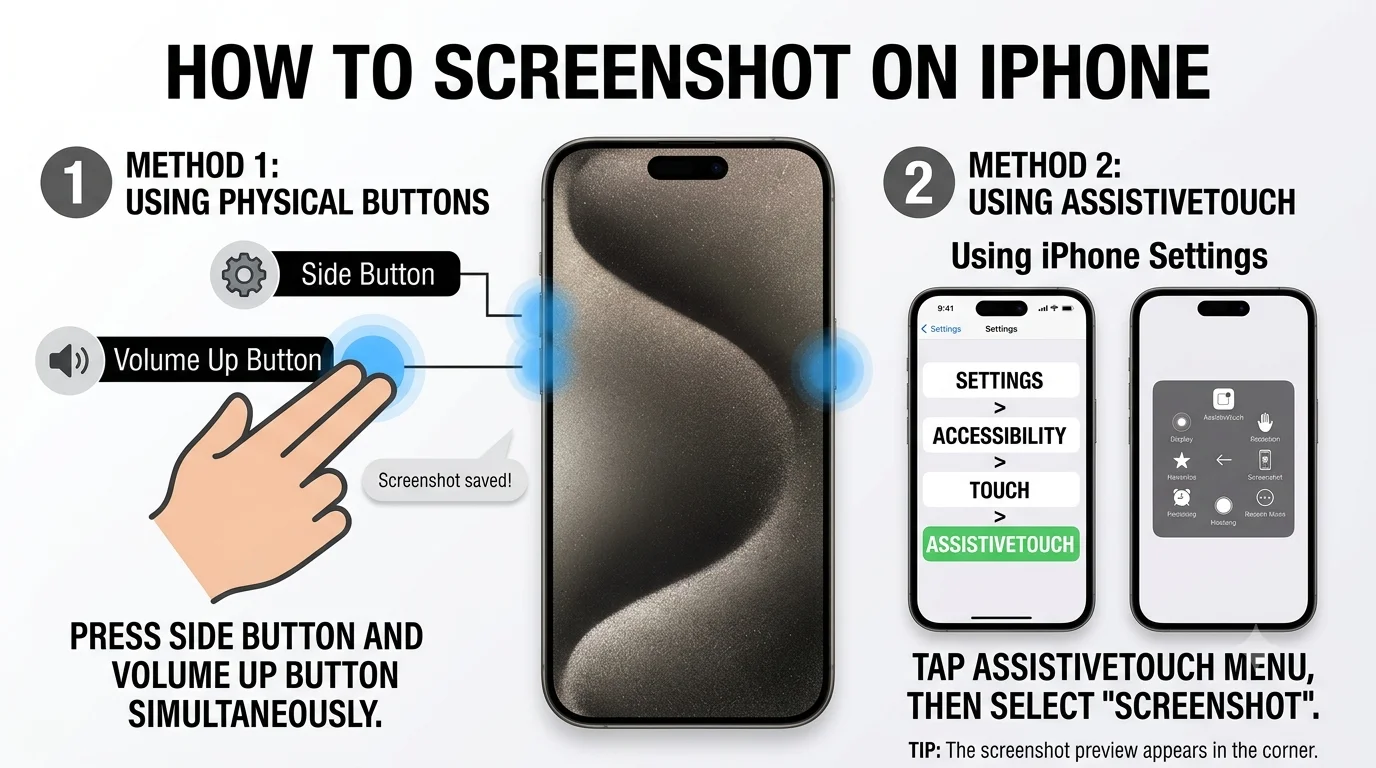
- Take a normal screenshot using the side button and volume up button together.
- Tap the thumbnail preview that appears in the bottom-left corner immediately after.
- If the content supports it, a "Full Page" option appears alongside the standard "Screen" option at the top of the editor.
- Tap Full Page, and the entire scrollable content is captured as one long image.
- Save or share the resulting image once you're happy with the capture.
This option only appears for compatible content it generally works well in Safari but may not appear in every app, particularly ones that don't use standard scrolling text layouts.
Android: built-in scrolling screenshots
- iPhone: built-in scrolling screenshots
- Android: built-in scrolling screenshots
- Windows: using a browser's built-in feature
- Mac: using a browser's built-in feature
- Third-party tools for scrolling screenshots
- Why some content doesn't support scrolling capture
- Tips for a clean scrolling screenshot
- Common issues and fixes
- Conclusion
- FAQ
Most modern Android phones support a similar built-in feature, though the exact steps can vary slightly by manufacturer:
- Take a normal screenshot using the power and volume down buttons together.
- Look for a "Capture more" or "Scroll shot" option in the notification or preview that appears immediately afterward.
- Tap it, and the phone automatically continues scrolling and capturing until you manually stop it or it reaches the end of the page.
- Save the resulting full-length image.
If this option doesn't appear on your specific phone, checking whether your manufacturer's camera or gallery app has a separate long-screenshot feature is worth trying, since some brands implement this slightly differently than others.
- How to Extract a Frame for a YouTube Thumbnail
- Best Free vs Paid Frame Grabber Tools Compared
- How to Screenshot on iPhone (All iOS Versions)
- How to Grab Frames Using QuickTime Player on Mac
Windows: using a browser's built-in feature
Windows doesn't include a native scrolling screenshot tool at the operating system level, but most modern web browsers offer this specifically for webpages:
- Right-click anywhere on the webpage you want to capture.
- Look for a screenshot-related option in the right-click menu, which some browsers include directly, often labeled something like "Take screenshot" or "Capture full page."
- Choose the full-page option specifically, rather than a visible-area-only capture.
- Save the resulting image.
If your specific browser doesn't include this natively, its built-in developer tools sometimes offer a full-page screenshot option, typically accessible by opening developer tools and looking within its command or capture menu — though this is a more technical route intended primarily for developers.
Mac: using a browser's built-in feature
Similar to Windows, Mac doesn't include a native operating-system-level scrolling screenshot tool, but the same browser-based approach works:
- Right-click on the webpage.
- Look for a full-page screenshot option in the browser's menu.
- Select it and save the resulting image.
Third-party tools for scrolling screenshots
If your browser or device doesn't offer a built-in option, or you need to capture something beyond a simple webpage (like a long chat conversation or a scrollable app interface), a free third-party screenshot tool with scrolling capture support fills this gap. When choosing one, look for a tool that's actively maintained and transparent about how it handles your captured content, especially if it includes any automatic upload feature.
Recommended Articles
 SCREENSHOTS BY DEVICE
 SCREENSHOTS BY DEVICE
 SCREENSHOTS BY DEVICE
Why some content doesn't support scrolling capture
Scrolling screenshot features generally rely on the content being a standard, predictably structured scrollable page or document. A few situations commonly don't work well:
- Infinite-scroll feeds (like some social media timelines) that keep loading new content indefinitely, without a natural endpoint for the capture to stop at
- Content with complex, non-standard scrolling behavior, such as certain interactive web apps
- Some in-app content outside of a standard browser, where the scrolling capture feature simply isn't supported by that specific app
Tips for a clean scrolling screenshot
Let the page fully load first, since capturing while content is still loading can result in blank sections or missing images in your final scrolling screenshot.
Close any pop-ups or overlays before starting the capture, since these can interrupt the scrolling process or get awkwardly included partway through the image.
Check the final result before relying on it, especially for longer pages, since occasional rendering glitches can occur, particularly with pages containing complex layouts or embedded videos.
- How to Screen Record and Grab a Frame from a Facebook Video
- How to Extract Frames from Video Using Adobe Premiere Pro
- Best Free Screenshot Tools for Windows and Mac
- How to Create a Storyboard from a Video Automatically
Common issues and fixes
The scrolling screenshot stopped partway through. This can happen with very long pages or content that loads additional material as you scroll try again, or consider capturing the content in a couple of shorter sections instead.
Text looks distorted or duplicated in the final image. This usually indicates the page's content shifted or reloaded slightly during the capture process closing background tabs or apps to free up processing resources sometimes helps.
The feature isn't available at all on my device. Not every phone model or browser version supports this natively checking for a software update, or falling back to a free third-party tool, are the two main options if the built-in feature genuinely isn't available.
Conclusion
Scrolling screenshots have become a standard built-in feature on most modern phones, making it easy to capture an entire webpage or document without stitching together multiple regular screenshots manually. On computers, the feature typically comes from your browser rather than the operating system itself, so checking your specific browser's right-click menu or developer tools is the first place to look before reaching for a third-party tool.
FAQ
Does every phone support scrolling screenshots?
Most modern Android phones and recent iPhones support this natively, though very old devices or software versions may not include the feature.
Why doesn't the scrolling screenshot option appear for a specific app?
This feature generally relies on standard, predictable content layouts some apps, especially those with custom or infinite-scroll interfaces, don't support it.
Can I take a scrolling screenshot of a social media feed?
Infinite-scroll feeds often don't work well with this feature, since there's no natural endpoint for the capture to stop at a series of regular screenshots is usually more reliable for this kind of content.
Do Windows and Mac have a built-in scrolling screenshot tool?
Not at the operating system level, but most modern web browsers include this feature specifically for webpages, accessible through the right-click menu or developer tools.
Is a scrolling screenshot the same quality as a regular screenshot?
Yes, the image quality itself is the same the difference is purely that a scrolling screenshot captures additional content beyond what's visible on screen at one time, stitched into one continuous image.