How to Screenshot on iPhone (All iOS Versions)
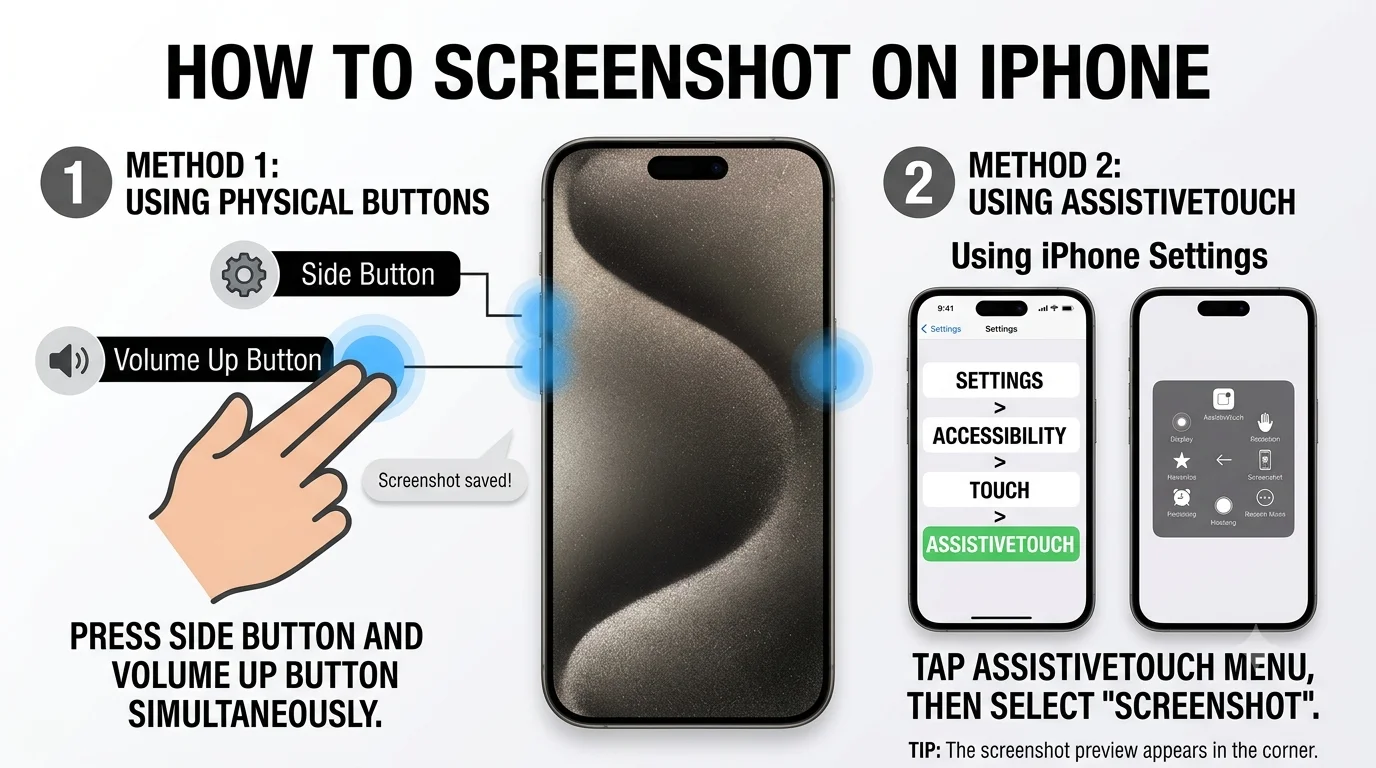
On any iPhone with Face ID (iPhone X and later), you take a screenshot by pressing the side button and the volume up button at the same time; on older iPhones with a Home button, you press the side or top button together with the Home button instead.
The exact button combination depends on which iPhone model you have, since Apple changed the physical button layout when it removed the Home button starting with the iPhone X. This guide covers every current method, where your screenshots are saved, and how to fix the most common issues.
iPhone with Face ID (iPhone X, 11, 12, 13, 14, 15, 16, and newer)
These models have no Home button, so the screenshot shortcut uses two side buttons instead:
- Press and hold the side button (on the right edge of the phone).
- At the same time, press the volume up button (on the left edge).
- Release both immediately a brief flash and a thumbnail preview in the bottom-left corner confirm the screenshot was captured.
iPhone with a Home button (iPhone 8, SE 2nd/3rd generation, and earlier)
- iPhone with Face ID (iPhone X, 11, 12, 13, 14, 15, 16, and newer)
- iPhone with a Home button (iPhone 8, SE 2nd/3rd generation, and earlier)
- Using AssistiveTouch (no physical buttons needed)
- Back Tap (iPhone 8 and later, running recent iOS versions)
- Editing your screenshot immediately after capturing
- Taking a scrolling screenshot (capturing a full webpage or document)
- Where do iPhone screenshots get saved?
- Common issues and fixes
- Quick reference table
- Conclusion
- FAQ
Models with a physical Home button use a different combination:
- Press and hold the side or top button (depending on the exact model).
- At the same time, press the Home button.
- Release both together, and the same flash and thumbnail preview will confirm the capture.
Using AssistiveTouch (no physical buttons needed)
If your physical buttons are damaged or you prefer an on-screen method:
- Go to Settings, then Accessibility, then Touch, and turn on AssistiveTouch.
- A small floating button appears on your screen.
- Tap it, then choose Device.
- Tap More, then Screenshot.
This method works identically across all iPhone models once AssistiveTouch is enabled, making it a useful backup if your physical buttons aren't working reliably.
Back Tap (iPhone 8 and later, running recent iOS versions)
Some newer iOS versions let you trigger a screenshot by tapping the back of your phone:
- Go to Settings, then Accessibility, then Touch, and select Back Tap.
- Choose either Double Tap or Triple Tap.
- Select Screenshot from the list of available actions.
Once set up, tapping the back of your phone the chosen number of times captures a screenshot without pressing any buttons at all.
Editing your screenshot immediately after capturing
Right after taking a screenshot, a small thumbnail appears in the bottom-left corner of your screen for a few seconds. Tapping it before it disappears opens the built-in markup editor, where you can:
- Crop the image
- Draw or highlight specific areas
- Add text directly onto the screenshot
- Share it immediately without needing to open the Photos app separately
If you don't tap the thumbnail in time, it simply saves to your Photos app automatically, and you can still edit it there later.
Taking a scrolling screenshot (capturing a full webpage or document)
Recent iOS versions support capturing an entire scrollable page, not just what's visible on screen, when the content supports it (commonly Safari web pages and some document apps):
- Take a normal screenshot using either button method above.
- Tap the thumbnail preview immediately.
- If the content supports it, a Full Page option will appear at the top of the editor alongside the standard Screen option.
- Select Full Page, and the entire scrollable content will be captured as one long image.
This option only appears for compatible content it doesn't work in every app, particularly ones that aren't designed with standard scrolling text or web content.
Recommended Articles
 SCREENSHOTS BY DEVICE
 SCREENSHOTS BY DEVICE
 SCREENSHOTS BY DEVICE
Where do iPhone screenshots get saved?
All screenshots save automatically to the Photos app, specifically inside a dedicated Screenshots album for easy browsing, in addition to appearing in your main camera roll alongside regular photos.
- How to Save a Frame from an Instagram Reel
- How to Capture Video Frames Using Windows Photos App
- How to Download a YouTube Thumbnail in Full Resolution
Common issues and fixes
My screenshot shortcut isn't working. Confirm you're pressing both buttons at exactly the same time and releasing quickly holding either button too long can trigger a different function, like powering off the phone or opening Siri.
The screenshot includes a black box over part of a video. This happens with DRM-protected video content from certain streaming apps, which block screenshots as a built-in copy-protection measure that no screenshot method can bypass.
I can't find my screenshots. Open the Photos app, tap Albums, and look for the Screenshots album, which automatically collects every screenshot separately from your regular camera photos.
Back Tap isn't triggering a screenshot reliably. This feature can sometimes be sensitive to how and where you tap the back of the phone try tapping more firmly in the center of the back panel, and double-check the correct action is still assigned in Accessibility settings.
Quick reference table
| iPhone type | Screenshot shortcut |
|---|---|
| Face ID models (X and later) | Side button + Volume up |
| Home button models (8, SE) | Side/top button + Home button |
| Any model | AssistiveTouch on-screen button |
| Any supported model | Back Tap (after enabling in settings) |
Conclusion
Screenshotting on iPhone comes down to knowing which button combination matches your specific model Face ID phones use the side and volume up buttons together, while Home button models pair the side button with Home. Beyond the basic capture, features like scrolling full-page screenshots and Back Tap add real convenience once you know they exist, and the built-in Screenshots album makes finding what you've captured simple no matter how many you take.
FAQ
What is the screenshot shortcut on the newest iPhones?
Press the side button and volume up button at the same time this applies to every Face ID iPhone model, from the iPhone X through the newest releases.
Can I take a screenshot without pressing any physical buttons?
Yes, using either AssistiveTouch, which adds an on-screen button for a virtual screenshot trigger, or Back Tap, which captures a screenshot when you tap the back of the phone.
Why does my screenshot show a black screen over part of the video?
This is a copy-protection feature built into certain streaming apps that blocks screenshots of protected video content, and it isn't something any screenshot method can work around.
How do I take a screenshot of an entire webpage, not just what's visible?
Take a normal screenshot, tap the thumbnail preview immediately, and select Full Page if the option appears this works for compatible content like most Safari web pages.
Where can I find all my past screenshots in one place?
Open the Photos app and look for the Screenshots album under Albums, which automatically separates every screenshot from your regular camera photos.