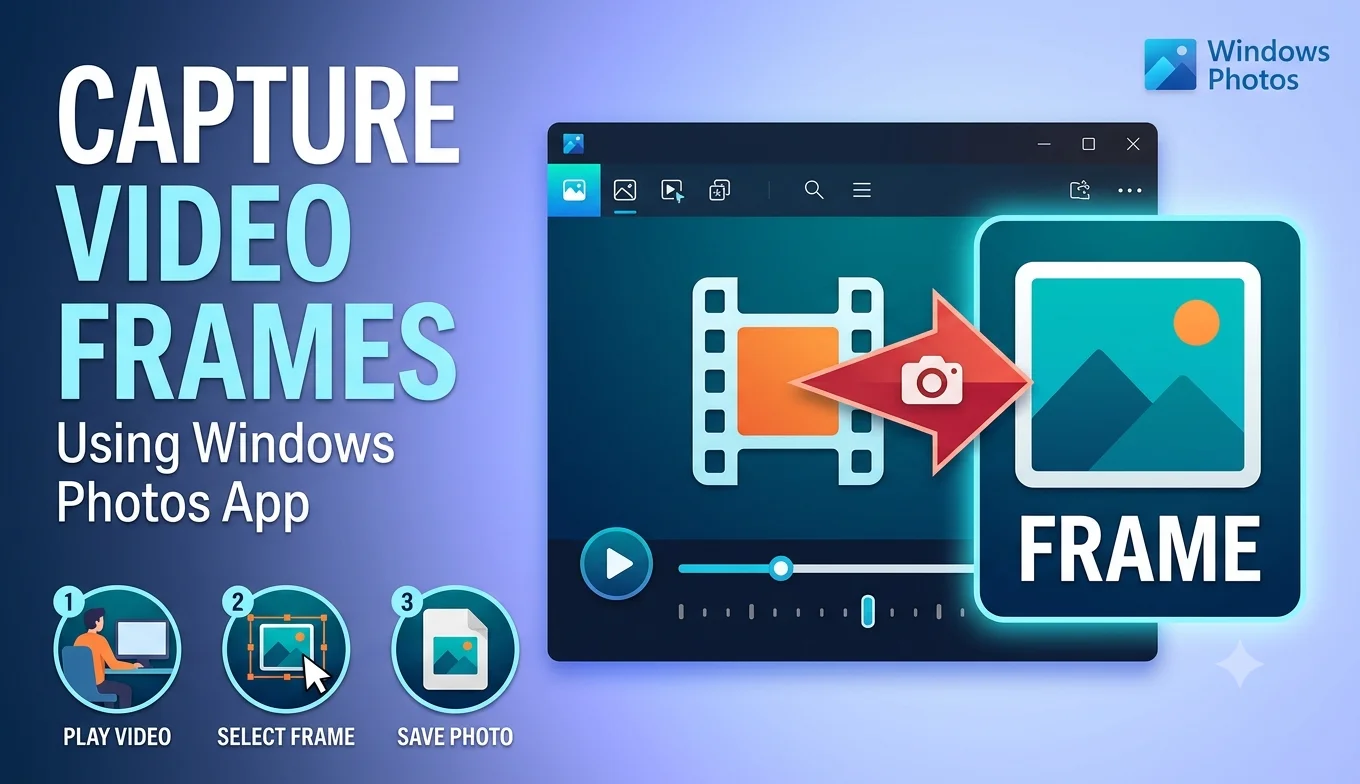
How to Capture Video Frames Using Windows Photos App
The Photos app that comes preinstalled on Windows can extract a still frame from any video file by opening it, pausing at the moment you want, and saving that frame as an image, with no extra software needed.
For Windows users who only need to grab an occasional frame, this built-in option covers most everyday needs without downloading anything new. This guide walks through the full process, its limitations compared to dedicated tools, and what to do when it isn't quite enough.
Why use the Photos app instead of a dedicated frame grabber
The Photos app has one clear advantage: it's already on your computer. For someone who just needs to grab a single frame every now and then, that convenience outweighs the extra features a dedicated tool might offer. It's a reasonable starting point before deciding whether you need something more powerful.
Step-by-step: Extracting a frame with Photos
- Why use the Photos app instead of a dedicated frame grabber
- Step-by-step: Extracting a frame with Photos
- 1. Open your video file
- 2. Play and pause at your chosen moment
- 3. Look for the frame capture option
- 4. Save the captured frame
- What if your version of Photos doesn't show a snapshot option?
- Limitations compared to dedicated tools
- Getting a sharper result from the Photos app
- Editing the captured frame afterward
- When it's worth switching to a different tool
- Conclusion
- FAQ
1. Open your video file
Right-click the video file in File Explorer, choose Open with, and select Photos. Alternatively, open the Photos app first and browse to your video from within the app.
2. Play and pause at your chosen moment
Use the play button to start the video, then pause it at the exact point you want to capture. The Photos app includes basic scrubbing controls on the timeline, letting you drag to roughly the right spot before fine-tuning with pause and play.
3. Look for the frame capture option
Depending on your version of Windows, the Photos app may show an editing or "Save frame" style option directly in its video playback controls, usually represented by a small camera or snapshot icon near the timeline. If this option isn't visible in your version, the next section covers alternatives.
4. Save the captured frame
Once you've captured the still image, the app will typically prompt you to save it as a new file, separate from the original video, usually as a JPG or PNG in your Pictures folder unless you choose a different location.
- How to Extract a Frame for a YouTube Thumbnail
- How to Save a Frame from an Instagram Reel
- How to Extract High-Quality Frames from 4K YouTube Videos
- Frame Rate Explained: 24fps vs 30fps vs 60fps
What if your version of Photos doesn't show a snapshot option?
Windows has changed its default video and photo apps several times over different updates, and not every installation includes the same snapshot feature directly in Photos. If you don't see an obvious frame capture button:
- Check for updates to the Photos app through the Microsoft Store, since newer versions sometimes add features older installs don't have.
- Use the Windows screenshot shortcut instead pause the video at your chosen frame, then use Windows plus Shift plus S to capture just that portion of the screen.
- Consider a dedicated frame grabber tool if you find yourself needing this often, since it will give you more consistent results across different Windows versions.
Limitations compared to dedicated tools
The Photos app is convenient, but it's worth knowing where it falls short compared to something like VLC or an online frame grabber:
- No frame-by-frame stepping. You're limited to pausing and playing, which makes landing on the exact frame less precise than tools with dedicated stepping controls.
- No batch extraction. If you need multiple frames from the same video, you'll be repeating the manual process each time rather than automating it.
- Limited to local files. Unlike an online frame grabber, Photos can't pull a frame directly from an online video link — you'd need to download the video first.
Getting a sharper result from the Photos app
Use the original video file, not a compressed copy. If you have a choice between the original camera file and a version that's been shared or re-compressed, always start with the highest quality source available.
Recommended Articles
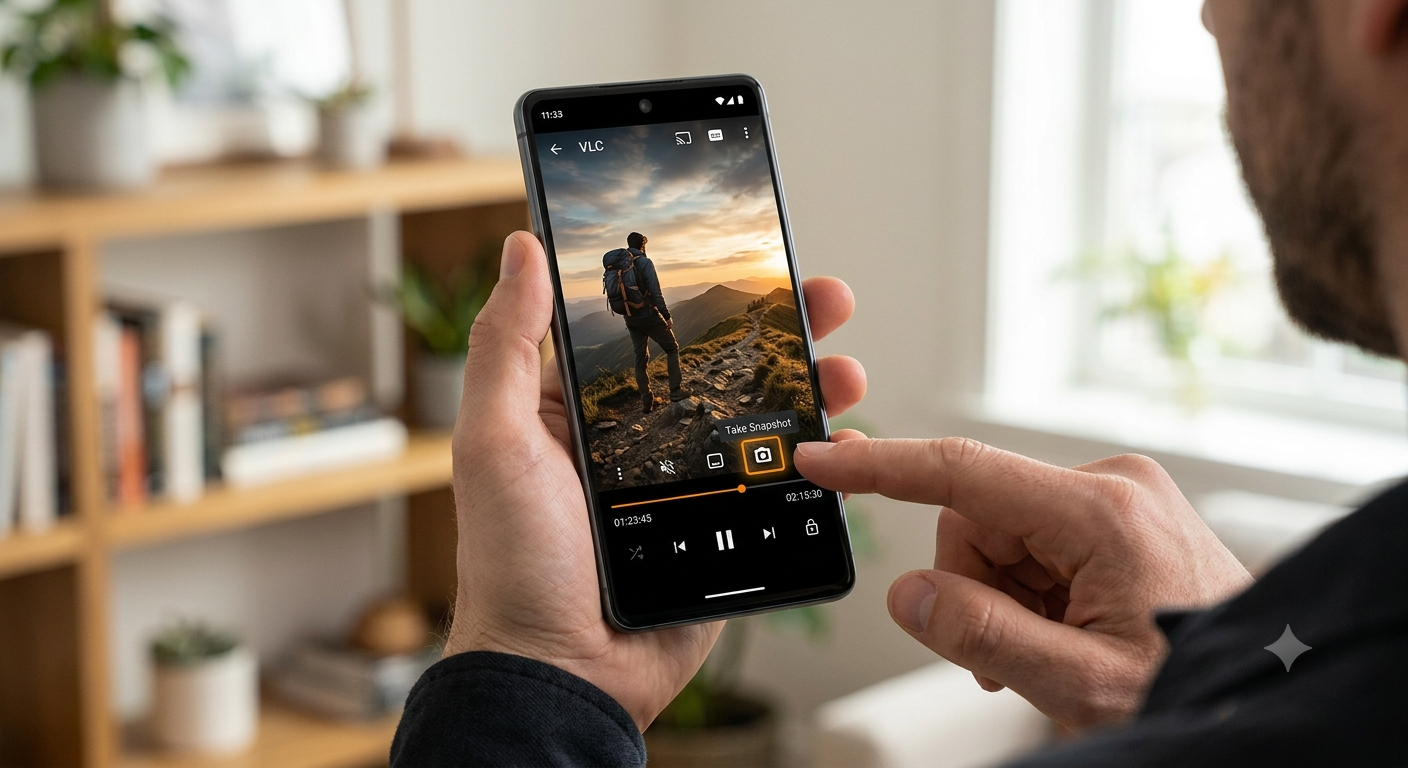 SOFTWARE TUTORIALS
 SOFTWARE TUTORIALS
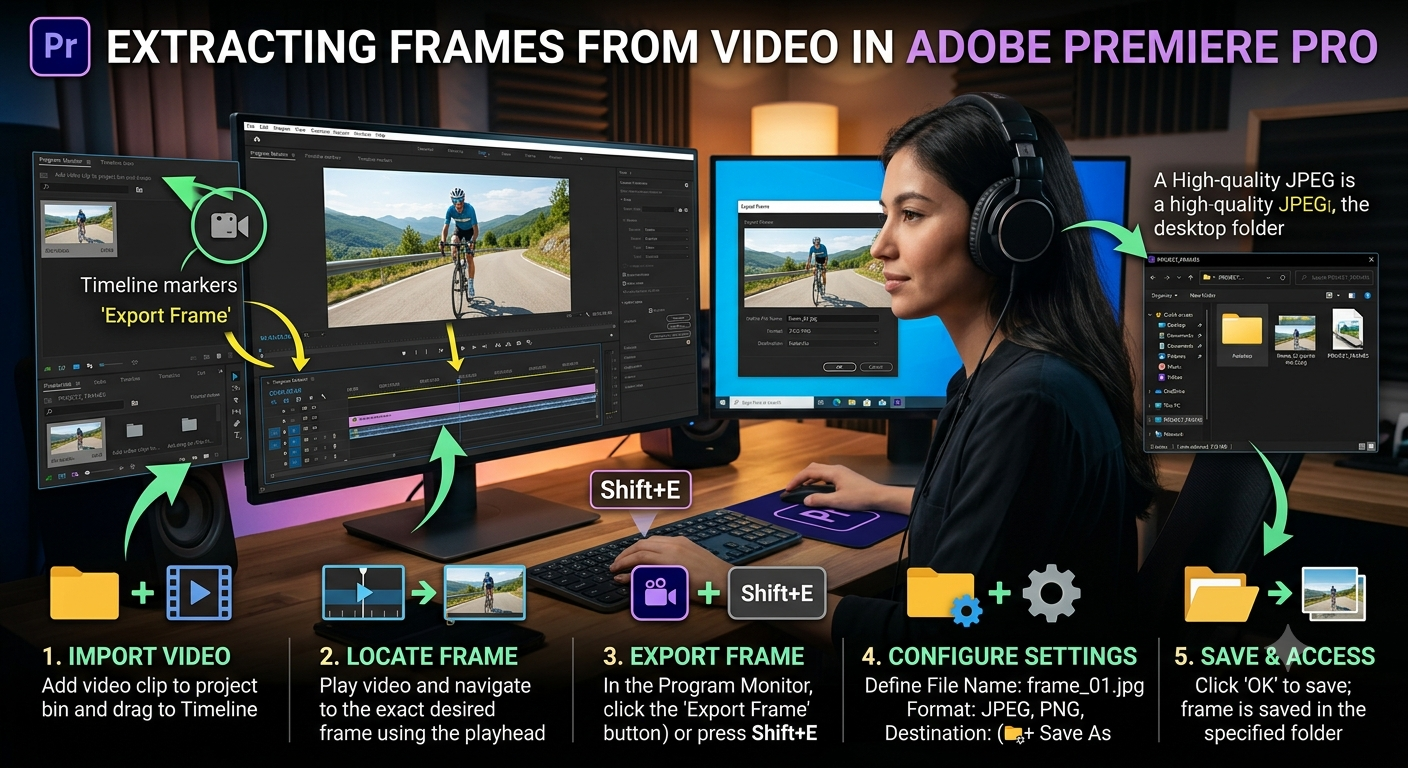 SOFTWARE TUTORIALS
 SOFTWARE TUTORIALS
Pick a still moment. As with any frame extraction method, motion blur from fast movement is baked into the original recording and can't be fixed after the fact, so choosing a calmer moment in the video gives a cleaner result.
Check the saved file at full size. Windows sometimes shows thumbnails that look sharper than the actual saved file open the captured frame at 100% zoom in an image viewer to confirm the real quality before using it elsewhere.
Editing the captured frame afterward
Once you've saved a frame using Photos, the same app includes basic editing tools crop, rotate, and simple filters accessible by opening the saved image and selecting Edit. This is convenient if you only need light touch-ups and don't want to open a separate image editor for small adjustments.
- How to Extract a Frame for a YouTube Thumbnail
- How to Save a Frame from an Instagram Reel
- How to Extract High-Quality Frames from 4K YouTube Videos
- Frame Rate Explained: 24fps vs 30fps vs 60fps
When it's worth switching to a different tool
The Photos app is a fine starting point, but consider switching to something like VLC or an online frame grabber if:
- You regularly need more than a handful of frames from the same video
- You need frames from online videos rather than files already saved on your computer
- Precise frame-by-frame positioning matters more than rough pause-and-play accuracy
- You want a consistent process that doesn't depend on which version of Windows or Photos you're running
Conclusion
The Windows Photos app is a genuinely convenient option for occasional, single-frame extraction since it's already installed and requires no extra setup. Its limitations show up once you need precision, bulk extraction, or frames from online video situations where a dedicated tool like VLC or an online frame grabber will serve you better. For casual, everyday use, though, Photos covers the basics without any extra download.
FAQ
Does the Windows Photos app work for extracting frames from any video format?
It supports most common formats like MP4 and MOV well, but less common or older formats may not open properly, in which case a tool like VLC with broader format support is a better fallback.
Can I extract multiple frames at once using Photos?
No, the Photos app only supports capturing one frame at a time manually. For bulk extraction, a dedicated tool with batch features, like VLC's Scene filter or FFmpeg, is a better fit.
Why can't I find a snapshot button in my version of Photos?
Different Windows updates have shipped different versions of the Photos app, and not all of them include this feature in the same place, or at all. Checking for app updates or switching to a dedicated frame grabber tool are the two most reliable fixes.
Is the quality from Photos as good as a dedicated frame grabber?
Generally yes, since it captures from the video's native decoded resolution rather than a screen capture, assuming your source video itself is high quality.
Can I use Photos to extract a frame from a video I downloaded from the internet?
Yes, as long as the video is saved as a local file on your computer first Photos works with local files only, not online video links directly.