How to Grab a Frame from a YouTube Video (Free, No Software)
You can grab a frame from any YouTube video for free by pausing it at the exact moment you want, then using a free online frame grabber to capture that paused frame as an image no software download required.
This method works on any browser, on desktop or mobile, and takes under a minute once you know the steps. Whether you need a frame for a thumbnail, a meme, a blog cover, or just to save a memorable moment, this guide walks through every part of the process, plus the quality issues people run into and how to avoid them.
Why grab a frame instead of just screenshotting?
It's tempting to just hit the screenshot shortcut on your keyboard while a YouTube video plays, and that does work in a pinch. But a dedicated frame grabber has real advantages:
- Native resolution. A screenshot only captures what's displayed on your screen if your browser window is small, your captured image is small too. A Frame Grabber pulls the frame from the actual video stream, giving you the highest resolution YouTube is serving.
- No interface clutter. Screenshots include your browser chrome, the YouTube player controls, ads, and cursor unless you crop them out manually. A frame grabber gives you just the video content.
- Precision. Most frame grabbers let you jump to an exact timestamp or step frame-by-frame, which is far more accurate than trying to pause a video at just the right split second.
What you'll need
- Why grab a frame instead of just screenshotting?
- What you'll need
- Step-by-step: Grab a frame from YouTube
- 1. Find the exact moment
- 2. Copy the video URL
- 3. Paste the URL into a frame grabber
- 4. Scrub to your frame
- 5. Capture and download
- Why the quality sometimes looks soft
- Common questions people run into mid-process
- Legal and ethical basics
- Tips for getting the best possible frame
- Conclusion
- FAQ
- The YouTube video URL
- A free online frame grabber (browser-based)
- 2 minutes
Step-by-step: Grab a frame from YouTube
1. Find the exact moment
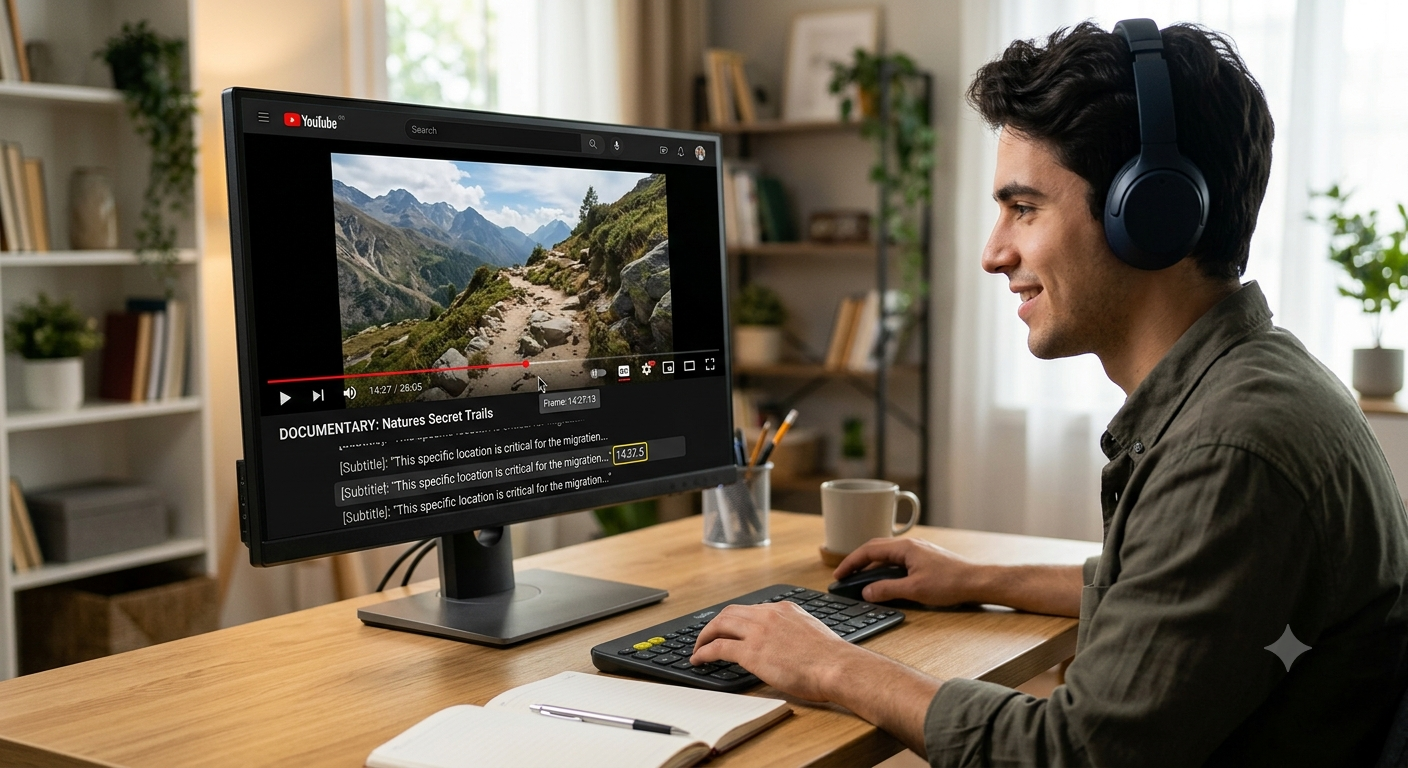
Open the video on YouTube and play it until you're close to the frame you want. Use the comma and period keys to step backward and forward one frame at a time this is the most precise way to land on the exact frame, far better than dragging the timeline with your mouse. If you're on mobile, slow-motion scrubbing (some apps support a 0.25x playback speed) gives you similar precision.
Take note of the timestamp shown in the player you'll want this in the next steps.
2. Copy the video URL
Copy the YouTube link from the address bar (or use the Share button on mobile and copy the link). Many tools also let you jump straight to a specific timestamp once the video loads, so you don't need to worry about the link itself pointing to an exact moment.
3. Paste the URL into a frame grabber
Paste the link into an online frame grabber tool. Most tools will load the video directly without requiring you to download anything first they fetch and decode the stream in your browser or on their server, then hand you a scrubbable preview.
4. Scrub to your frame
Use the tool's timeline or timestamp field to move to the same moment you found in Step 1. Some tools let you type the exact timestamp for pixel-perfect accuracy, while others offer a frame-by-frame stepper similar to YouTube's own comma/period shortcut.
5. Capture and download
Click the capture/grab button. The tool will render that single frame as a PNG or JPG file you can download immediately. PNG is lossless and better if you plan to edit the image further; JPG is smaller and fine for quick sharing.
Why the quality sometimes looks soft
YouTube frames extracted this way inherit the resolution of the video stream being played. If your captured frame looks blurry, a few things are usually at play:
Player quality setting. Set the YouTube player to the highest available quality (1080p or 4K) before capturing. YouTube often defaults to a lower resolution to save bandwidth, and your frame grab will only ever be as sharp as the stream it's pulled from.
Motion blur. Avoid capturing during fast motion motion blur is baked into the original frame by the camera itself, not a mistake in the extraction process. A frame captured mid-swing of a hand or mid-jump will always look slightly smeared, no matter how good your tool is.
Compression artifacts. YouTube compresses video heavily to keep file sizes small. Busy, high-detail scenes (crowds, foliage, fast camera pans) compress less cleanly than simple, still shots, so frames from those moments can show blocky or smudged detail even at "1080p."
Choose a still frame. Pick a frame where the subject is relatively still right before or after a rapid movement rather than in the middle of it for the cleanest result.
Recommended Articles
 YOUTUBE FRAME GRABBING
 YOUTUBE FRAME GRABBING
 YOUTUBE FRAME GRABBING
Common questions people run into mid-process
The video won't load in the frame grabber. Double-check that the URL is a standard public YouTube link (not a private or age-restricted video, which some tools can't access). Try copying the link fresh from the address bar rather than a shortened or shared version, since extra parameters can sometimes confuse a tool.
My downloaded frame has black bars. This happens when the source video itself has letterboxing (common with cinematic 21:9 content uploaded into a 16:9 player). The black bars are part of the original video, not an extraction error — cropping them out afterward in any basic photo editor solves it.
The frame looks different in color from what I saw on screen. Different monitors and browsers can render color slightly differently. The extracted file itself contains the video's actual color data, so this is usually a display calibration difference rather than a real color issue.
Legal and ethical basics
Grabbing a frame for personal use, commentary, or fair-use purposes like criticism, education, or parody is generally fine under most copyright frameworks. Where it gets trickier is:
- Commercial use. Using someone else's footage in a product, ad, or paid content without permission can raise real copyright issues.
- Faces and privacy. If a frame clearly identifies a private individual, be thoughtful about how and where you republish it, especially outside of newsworthy or educational context.
- Attribution helps. Even when fair use likely applies, crediting the original video and creator is good practice and reduces the odds of a takedown dispute.
When in doubt, check the video's license terms (Creative Commons videos are explicitly reusable) or reach out to the creator directly.
Tips for getting the best possible frame
- Watch at full resolution first. Scrub through once at 1080p/4K to find your moment before switching to precise frame-stepping.
- Prefer keyframes when possible. Every few seconds, a video contains a "keyframe" that stores a complete image rather than just the changes since the last frame these tend to extract the sharpest. If your chosen moment looks soft, try nudging a frame or two in either direction.
- Zoom before you crop, not after. If you need a close-up, extract the full frame first, then crop in an image editor cropping preserves more detail than trying to zoom in on the YouTube player before capturing.
- Save in PNG if editing later. JPG compression is fine for sharing as-is, but repeated edits and re-saves in JPG degrade quality start from PNG if you plan to touch up the image.
Conclusion
Grabbing a frame from a YouTube video is quick once you know the process: find your moment using frame-by-frame stepping, paste the link into a frame grabber, scrub to the same spot, and download. The biggest factor in getting a sharp result isn't the tool you use it's picking a still moment at the highest available playback quality, and avoiding fast motion where possible. With that in mind, you can pull a clean, high-quality frame from almost any YouTube video in under a minute.
FAQ
Can I grab a frame from a YouTube video without any tool at all?
Yes pause the video, take a screenshot of your screen, then crop it. It works but gives lower quality than a frame grabber because it captures your display resolution, not the video's native resolution.
Is it legal to grab frames from YouTube videos?
Grabbing a frame for personal use, commentary, or fair-use purposes is generally fine. Using someone else's footage commercially without permission can raise copyright issues check the video's license before publishing extracted frames elsewhere.
Does this work on YouTube Shorts?
Yes, the same paste-the-link method works for Shorts. Because Shorts are vertical, your extracted frame will be in portrait orientation.
Can I grab multiple frames at once?
Some frame grabber tools support batch extraction at set intervals (e.g., one frame every 5 seconds), which is useful for building a storyboard or highlight sheet.
Why does my extracted frame look lower quality than the thumbnail YouTube shows?
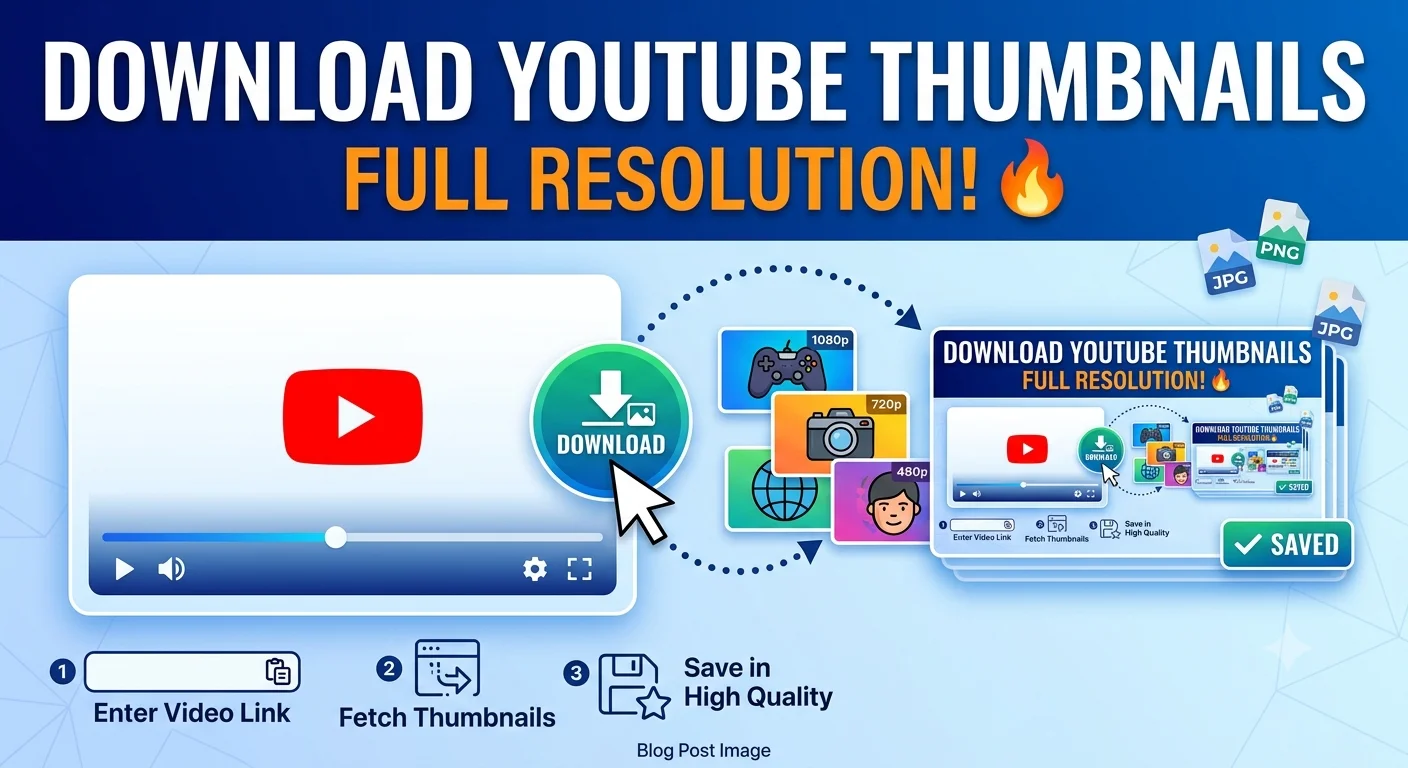
YouTube's official thumbnails are often custom-uploaded images, not actual frames from the video they can be higher resolution or even edited. A frame you extract yourself reflects exactly what appears during playback at that timestamp.
Can I extract a frame from a live YouTube stream?
Only once it becomes a recorded video (most live streams automatically save as a regular video after ending). You can't grab a frame from content that's still actively streaming live.