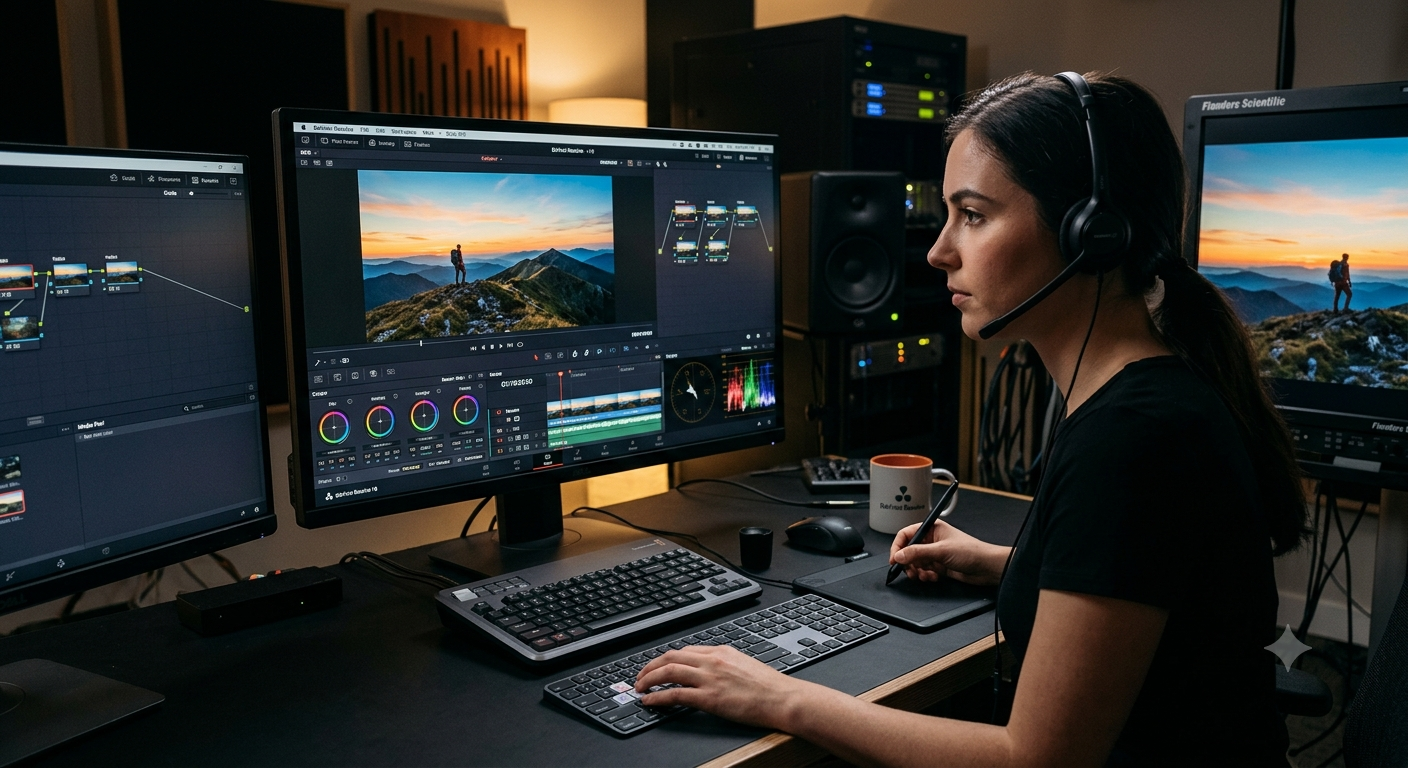
How to Grab Frames in DaVinci Resolve (Free Editor)
DaVinci Resolve, a free professional-grade video editor, can export a single frame from any clip using its built-in still-image export feature, giving you a precise, high-quality frame directly within the same editing environment you're already using.
DaVinci Resolve's free version includes most of the core editing and color grading features found in its paid counterpart, making it a genuinely powerful, no-cost option for anyone who wants frame extraction alongside real editing capability. This guide walks through the process step by step.
Why DaVinci Resolve stands out among free tools
Unlike simpler frame grabbers, DaVinci Resolve is a full professional editing suite, completely free, which means frame extraction here comes with some real advantages:
- Reflects your color grading. If you've applied color correction within Resolve, your exported frame reflects those changes, not just the raw, unedited source footage.
- Precise timeline and frame navigation, similar to other professional editing tools, with exact timecode display for landing on the right frame.
- No cost for professional-grade features, unlike most other professional editing software, which typically requires a paid subscription for comparable capability.
Exporting a single frame
- Why DaVinci Resolve stands out among free tools
- Exporting a single frame
- 1. Import and place your clip on the timeline
- 2. Navigate to the exact frame
- 3. Open the export options
- 4. Choose your format and destination
- 5. Export
- Alternative method: using the Color page for grading before export
- Getting the best quality export
- Common issues and fixes
- When DaVinci Resolve makes sense over a simpler tool
- Conclusion
- FAQ
1. Import and place your clip on the timeline
Open DaVinci Resolve, import your video file, and place it on a timeline in the Edit page if it isn't there already.
2. Navigate to the exact frame
Use the playhead and the left and right arrow keys to step through the timeline one frame at a time, watching the timecode display to confirm you've landed precisely on your target frame.
- How to Find the Exact Frame Timestamp Using YouTube Subtitles
- How to Take a Scrolling Screenshot on Any Device
3. Open the export options
With your playhead positioned correctly, go to the File menu, then look for an export option specifically for the current frame, sometimes located under Export, then Current Frame as Still, depending on your version of the software.
4. Choose your format and destination
Select your preferred image format options typically include formats like TIFF, PNG, or JPEG and choose where to save the exported frame.
5. Export
Confirm the export, and DaVinci Resolve saves the frame at your project's resolution, reflecting any color grading or effects currently applied.
Alternative method: using the Color page for grading before export
If you want to apply specific color correction to a frame before extracting it, rather than exporting the raw source:
- Switch to the Color page within DaVinci Resolve.
- Navigate to your target frame using the same timeline controls.
- Apply any color correction or grading adjustments using Resolve's color tools.
- Return to the export process described above, and your color-graded adjustments will be reflected in the final exported frame.
This workflow is particularly useful if your source footage needs correction for lighting, color balance, or contrast before it's ready to be used as a standalone still image.
Getting the best quality export
Match your project resolution to your source footage. If your DaVinci Resolve project timeline is set to a lower resolution than your original footage, your exported frame will be limited to that lower project resolution rather than the source's full native quality.
Choose TIFF or PNG for lossless quality, particularly important if you plan to do further editing or printing with the exported frame, since these formats avoid the additional compression JPEG introduces.
Recommended Articles
 SOFTWARE TUTORIALS
 SOFTWARE TUTORIALS
 SOFTWARE TUTORIALS
 SOFTWARE TUTORIALS
Check your monitor and color settings. Since DaVinci Resolve is built around precise color work, make sure your preview settings are configured correctly so what you see while positioning your playhead accurately reflects what will actually be exported.
- How to Extract a Frame for a YouTube Thumbnail
- Best Free vs Paid Frame Grabber Tools Compared
- How to Screenshot on iPhone (All iOS Versions)
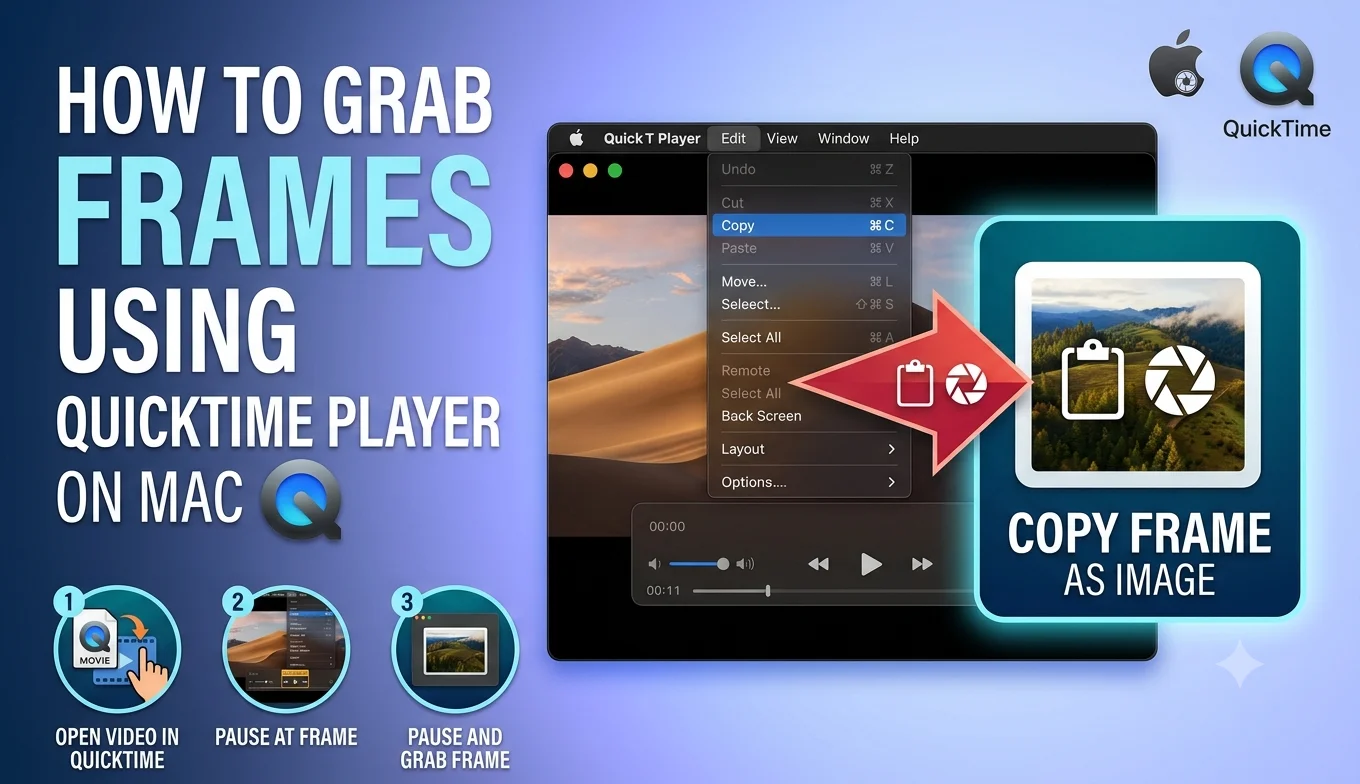
- How to Grab Frames Using QuickTime Player on Mac
Common issues and fixes
The exported frame doesn't reflect my color grading. Double-check that you're exporting from the correct page or that your color adjustments have actually been applied to the specific frame you're exporting, since some grading tools apply changes to a clip as a whole rather than the raw source automatically.
Export option isn't where I expect it. DaVinci Resolve's interface has changed somewhat between major versions, so the exact menu location for frame export can shift checking the current version's documentation is a reliable way to confirm the precise path if the menu structure looks different from what's described here.
The frame looks softer than expected. Confirm your project's timeline resolution matches or exceeds your source footage's native resolution, since a lower project setting will cap the quality of anything exported from it.
File size of the exported frame seems unusually large. This is expected behavior for lossless formats like TIFF at high resolution — switch to JPEG if a smaller file size matters more than maximum quality for your specific use.
When DaVinci Resolve makes sense over a simpler tool
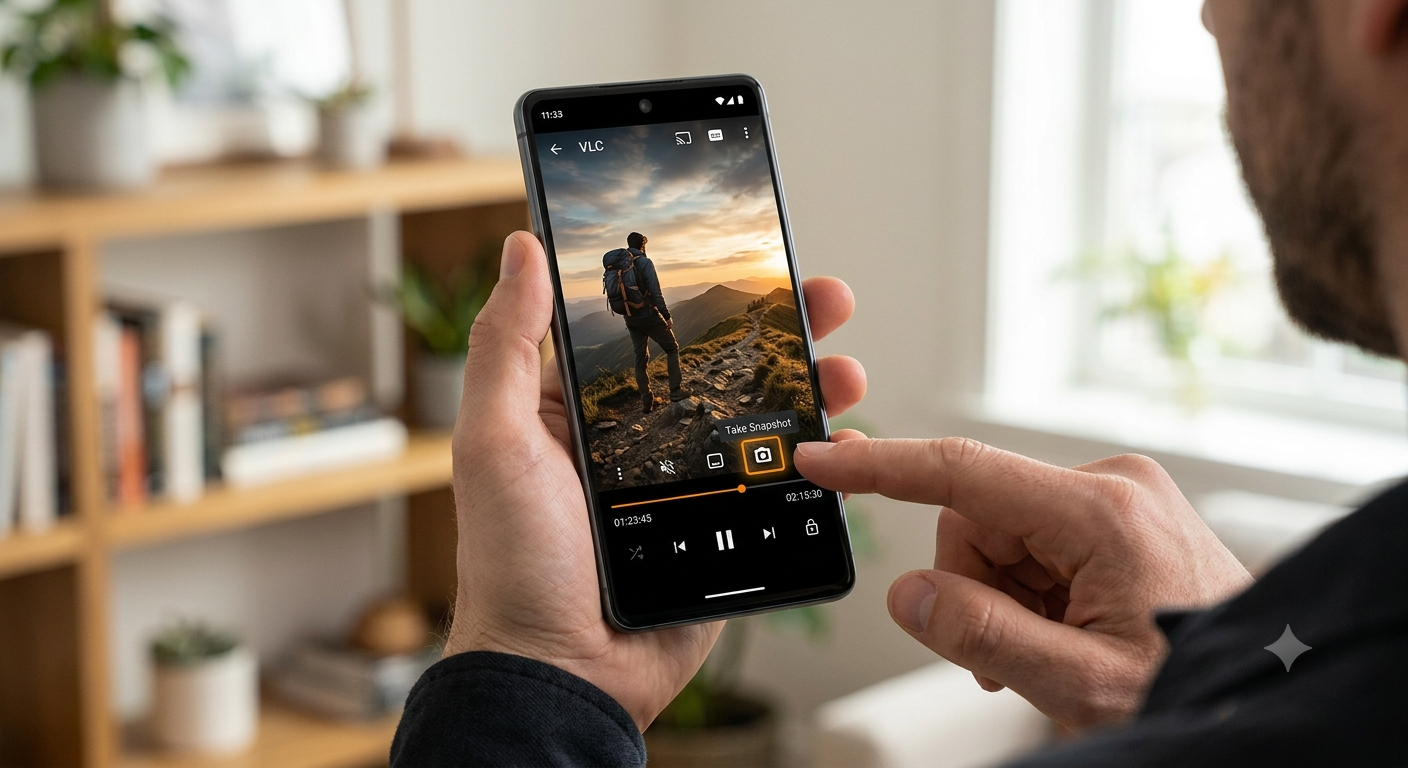
If you're already editing or color-grading footage in DaVinci Resolve for another reason, exporting frames directly within the same project is the most convenient and consistent approach, since it reflects your actual edits. For a quick, one-off frame grab from a video you're not otherwise editing, a lighter tool like VLC will generally be faster, since it avoids the overhead of setting up a full project in a professional editing suite just to extract one image.
Conclusion
DaVinci Resolve offers a genuinely professional-grade way to extract frames for free, particularly valuable if you're already using it for editing or color correction, since the exported frame reflects exactly what you've built within the project. For simple, occasional frame grabs outside an existing editing workflow, a lighter dedicated tool may still be the faster choice, but for anyone doing real editing work, Resolve's frame export is a capable, no-cost option worth knowing.
FAQ
Is DaVinci Resolve really free, or just a limited trial?
DaVinci Resolve's free version is a genuinely permanent, full-featured version of the software, not a time-limited trial, though a separate paid Studio version exists with some additional advanced features.
Does the exported frame include my color correction?
Yes, if you've applied color grading to the clip within your project, the exported frame reflects those adjustments rather than the raw, unedited source footage.
What image format should I choose when exporting a frame?
TIFF or PNG for lossless quality, particularly if you plan to edit or print the frame further, or JPEG if a smaller file size is more important than maximum quality.
Can DaVinci Resolve export multiple frames automatically?
The single-frame export feature covers one frame at a time; for bulk frame extraction across many timestamps, a dedicated tool like FFmpeg is generally better suited to that specific task.
Is DaVinci Resolve overkill for extracting just one frame?
If you're not already editing in Resolve for another reason, a simpler free tool like VLC is typically faster and more straightforward for a quick, one-off frame grab.