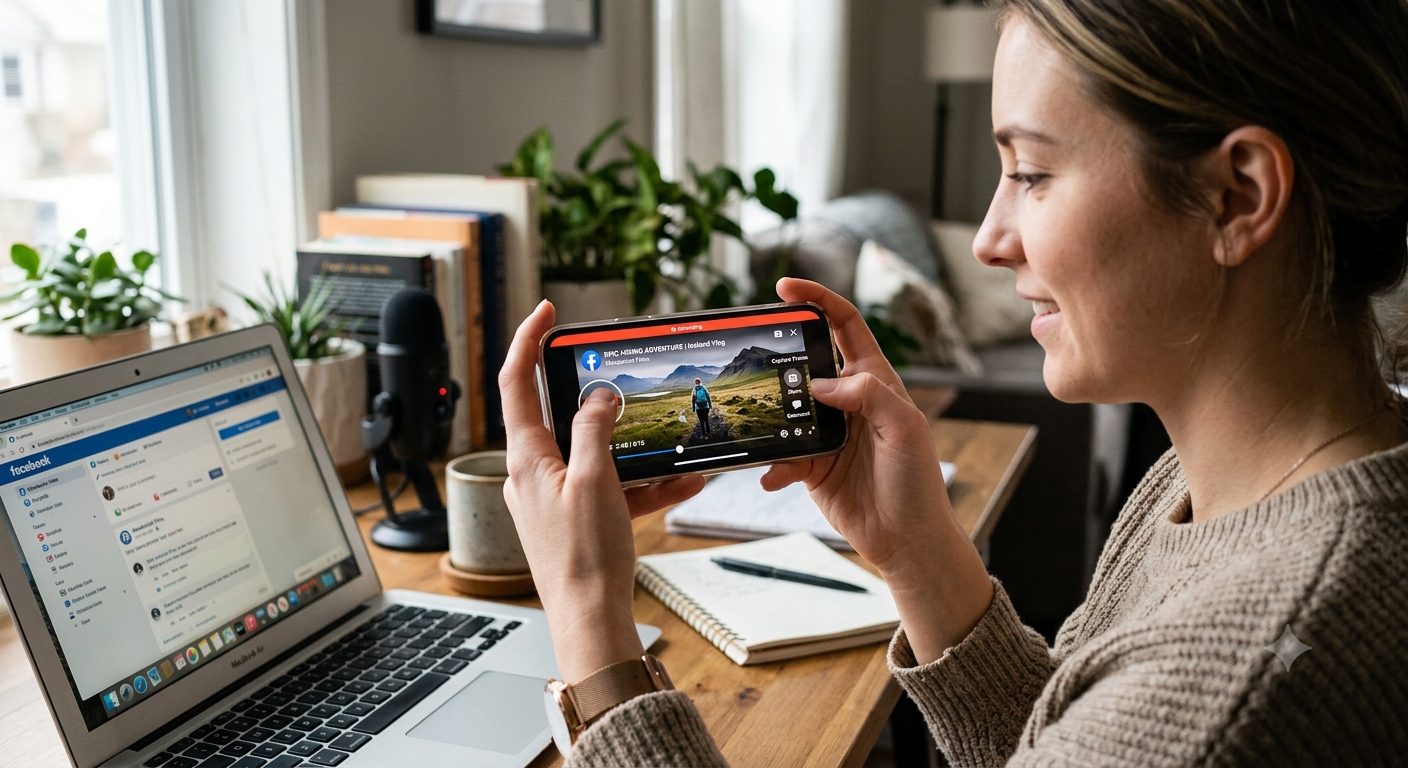
How to Screen Record and Grab a Frame from a Facebook Video
You can grab a frame from a Facebook video either by pausing it and taking a direct screenshot, or by screen recording the moment and extracting a frame afterward from the recording, which works well for content that's tricky to pause exactly on target.
Facebook videos come from a wide mix of sources personal uploads, Pages, Groups, Reels, and Watch content — and this guide covers the most reliable ways to capture a clean frame regardless of where the video lives on the platform.
Direct screenshot (fastest, most common approach)
- Open the video and let it play until you're close to the moment you want.
- Tap or click to pause playback at that point.
- Take your device's screenshot:
- iPhone: side button plus volume up
- Android: power button plus volume down
- Windows: Windows plus Shift plus S
- Mac: Shift, Command, and 4
- Your screenshot saves automatically, ready to crop afterward.
Screen recording for hard-to-pause moments
- Direct screenshot (fastest, most common approach)
- Screen recording for hard-to-pause moments
- Using a frame grabber with the video link
- Cropping out Facebook's interface after a screenshot
- Quality considerations specific to Facebook
- Extracting a frame from a Facebook Live recording
- Common issues and fixes
- Conclusion
- FAQ
Some Facebook videos, especially ones with fast action or a moment that's easy to miss by pausing manually, are easier to capture by recording first and reviewing frame by frame afterward:
- Start your device's built-in screen recording feature before the video reaches your target moment.
- Let it record through the section you're interested in, then stop the recording.
- Open the resulting recording in a media player like VLC.
- Use frame-by-frame stepping to land precisely on the exact frame you want.
- Use the snapshot feature to save that frame as a clean image.
This method trades a little extra setup time for significantly more precision than trying to pause live playback exactly on target.
Using a frame grabber with the video link
For public Facebook videos with a shareable link, an online frame grabber offers a cleaner result than a screenshot, since it pulls from the video stream directly rather than capturing your screen and its surrounding interface:
- Open the video and find the share option to copy its link.
- Paste the link into an online frame grabber tool.
- Scrub to your chosen timestamp and download the frame.
This method depends on the video being publicly accessible with a working shareable link content from private groups or restricted profiles may not work this way, in which case a screenshot remains the more reliable fallback.
- How to Save a Frame from an Instagram Reel
- How to Capture Video Frames Using Windows Photos App
- How to Download a YouTube Thumbnail in Full Resolution
- Video Resolution Explained: 720p vs 1080p vs 4K
Cropping out Facebook's interface after a screenshot
A direct screenshot will include Facebook's on-screen elements the like and comment icons, captions, and profile information. Cleaning this up afterward:
- Open the screenshot in your device's photo editor.
- Crop out the caption area, side icons, and any status bar or browser interface visible around the edges.
- Save the cropped version separately if you want to keep the original with context intact.
Quality considerations specific to Facebook
Facebook compresses video more heavily than some other platforms, particularly for content uploaded directly rather than shared from an external source. This can mean a frame extracted from a Facebook-native upload looks slightly softer than the same content would from its original source, if one exists elsewhere.
Recommended Articles
 SOCIAL MEDIA FRAME CAPTURE
 SOCIAL MEDIA FRAME CAPTURE
SOCIAL MEDIA FRAME CAPTURE
SOCIAL MEDIA FRAME CAPTURE
 SOCIAL MEDIA FRAME CAPTURE
Video quality can vary significantly by source. A professionally produced video shared by a Page will generally hold up better under extraction than a personal video recorded and uploaded directly from a phone in a Group or on someone's personal timeline.
Check playback quality settings if available. Some Facebook videos offer an HD toggle in the player — enabling this before capturing, where available, gives the best possible source quality to extract from.
Extracting a frame from a Facebook Live recording
Facebook Live broadcasts are typically saved automatically once the stream ends, becoming a regular video you can treat the same as any other Facebook upload for extraction purposes. Keep in mind that, similar to other platforms' live content, the original broadcast quality can be somewhat lower than a carefully produced, pre-recorded upload, due to the real-time demands of live streaming.
- How to Extract a Frame for a YouTube Thumbnail
- Best Free vs Paid Frame Grabber Tools Compared
- How to Screenshot on iPhone (All iOS Versions)
- How to Grab Frames Using QuickTime Player on Mac
Common issues and fixes
The video won't load in an online frame grabber tool. This usually means the video is private, restricted to a specific Group, or otherwise not publicly accessible via a direct link a screenshot or screen recording remains the reliable fallback in this situation.
My screenshot includes a black box instead of the video. This can happen with certain protected or licensed content on Facebook, similar to DRM protections on other streaming platforms, and isn't something a different screenshot method can typically resolve.
The extracted frame looks noticeably lower quality than expected. Check whether an HD playback option was available and enabled before capturing, and consider whether the original video itself was uploaded at a lower quality, which no extraction method can improve beyond the source.
Conclusion
Grabbing a frame from a Facebook video comes down to picking the right method for the situation — a direct screenshot works well for most everyday needs, screen recording followed by frame-by-frame review handles trickier fast-moving moments, and a frame grabber tool offers the cleanest result for publicly shareable content. Facebook's own compression and the wide variance in source video quality across different upload types are worth keeping in mind when judging how sharp a result to expect.
FAQ
Does Facebook notify someone when I screenshot their video?
No, Facebook does not send screenshot notifications for standard video content, unlike some other platforms that notify for specific private or disappearing content types.
Can I extract a frame from a private Facebook Group video?
Direct screenshot or screen recording methods generally still work, since they capture your screen directly, but link-based frame grabber tools typically require publicly accessible content.
Why does my Facebook video frame look more compressed than a similar YouTube frame?
Facebook tends to compress uploaded video more heavily than some other platforms, which can result in a slightly softer extracted frame even from a similar original source quality.
Is screen recording better than a direct screenshot for Facebook videos?
Screen recording is more reliable for fast-moving or hard-to-pause moments, since you can review the recording frame by frame afterward rather than trying to catch the exact instant live.
Can I extract a frame from a Facebook Reel the same way as a regular video?
Yes, the same methods apply, though Reels are vertical in orientation, so your extracted frame will be in portrait format rather than landscape.