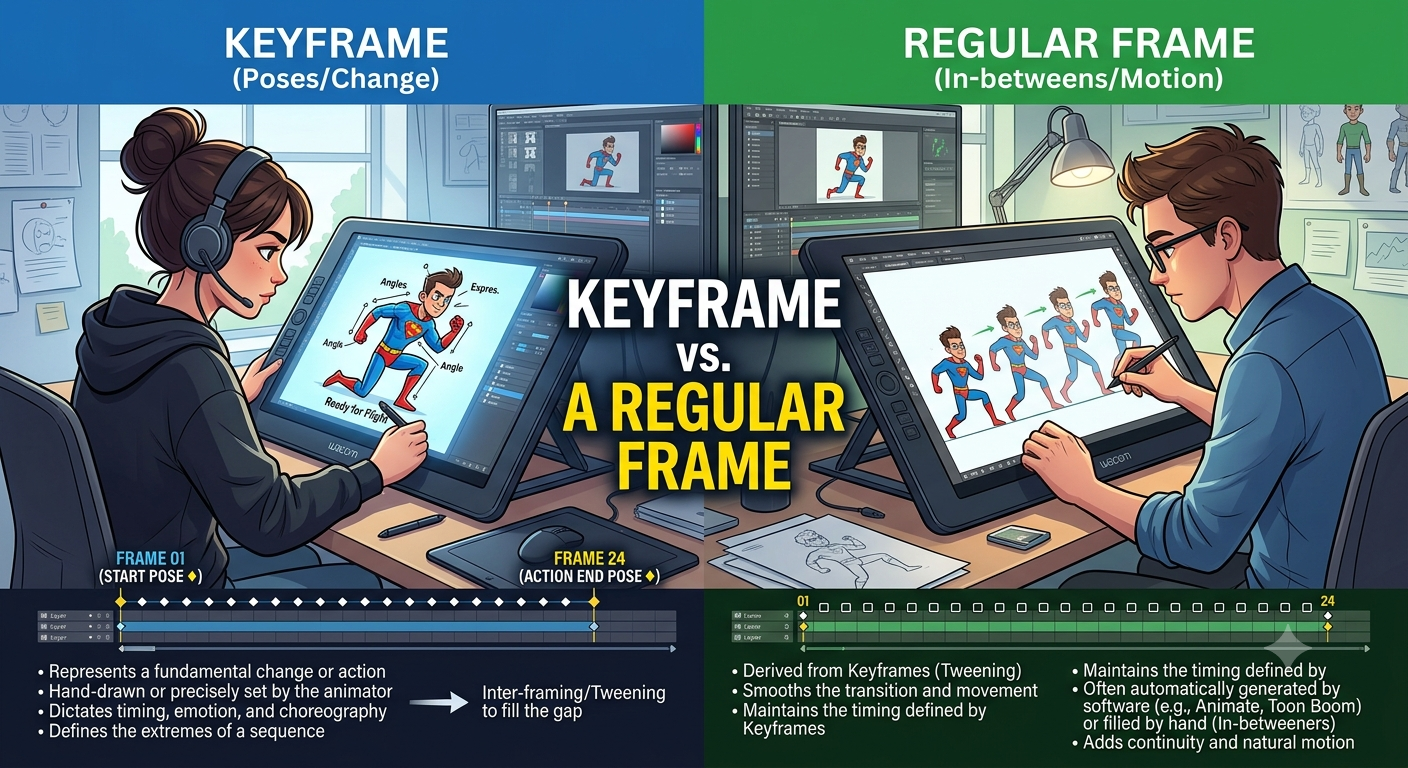
What Is a Keyframe vs a Regular Frame?
A keyframe is a completely stored image within a compressed video, while a regular frame in between keyframes typically only stores the changes since the previous frame, which is why keyframes tend to extract as noticeably sharper, cleaner still images than the frames surrounding them.
Understanding this distinction explains one of the more confusing quality quirks people run into when extracting frames — why two moments that look nearly identical during playback can sometimes produce a visibly different quality result once extracted as a still image.
How video compression actually works
Storing every single frame of a video as a complete, independent image would result in enormous file sizes, since even a short video contains hundreds or thousands of individual frames. To avoid this, most modern video formats use a system that stores only some frames completely, and describes the rest through the differences from those complete frames.
The three types of frames in compressed video
I-frames (keyframes). These are complete, independent images, stored in full, without relying on any other frame. They serve as reference points throughout the video, and typically appear periodically often every one to several seconds, depending on the specific format and encoding settings.
P-frames. These store only the changes since the previous frame, whether that previous frame was a keyframe or another P-frame. This is far more efficient in terms of file size, since most of a scene often stays the same from one frame to the next, especially in relatively static footage.
B-frames. These are similar to P-frames but can reference both the frame before and the frame after, allowing for even more efficient compression by predicting from both directions.
Together, this system dramatically reduces file size, since most frames only need to store a small amount of change information rather than a complete image.
- How to Find the Exact Frame Timestamp Using YouTube Subtitles
- How to Take a Scrolling Screenshot on Any Device
- How to Grab Frames in DaVinci Resolve
Why this matters for frame extraction
When you extract a P-frame or B-frame, your video player or extraction tool has to reconstruct that image on the fly, using the nearest keyframe plus all the stored differences leading up to that point. This reconstruction is generally seamless and invisible during normal playback, but it can introduce small quality differences compared to extracting a genuine, fully-stored keyframe.
Keyframes tend to extract more cleanly because there's no reconstruction involved what you're extracting is exactly what was originally stored, in full.
Frames between keyframes can occasionally show subtle softness or artifacts, particularly in scenes with a lot of movement or rapid change, since the reconstruction process has to estimate detail based on the stored differences rather than having a complete, standalone image to work from.
How to find keyframes in a video
Most casual users don't need to precisely identify every keyframe in a video, but a few practical approaches can help if frame quality matters a lot for a specific project:
Try nearby frames if one looks soft. If a specific frame you've extracted looks unexpectedly blurry or artifact-heavy, stepping forward or backward by a frame or two sometimes lands you on a nearby keyframe with noticeably better quality, especially if the visual content is similar enough between the two moments for your purposes.
Some technical tools can display keyframe information directly. More advanced video analysis tools can show exactly where keyframes occur within a specific file, useful for anyone doing detailed frame-level work where extraction quality is critical.
Scene changes often align with keyframes. Many encoding systems automatically place a keyframe at the start of a new scene or a significant visual change, since compressing based on a very different previous frame would be inefficient — this means the first frame right after a cut or scene transition is often a good candidate for a clean extraction.
Recommended Articles
 LEARN THE BASICS
 LEARN THE BASICS
 LEARN THE BASICS
Does this mean regular frames always look bad?
Not at all in most everyday cases, the difference between a keyframe and a nearby regular frame is subtle enough that it doesn't meaningfully affect casual use, like a quick social media post or personal reference image. The distinction becomes more noticeable in situations demanding maximum sharpness, like a large presentation slide, a print project, or heavily cropping into a small portion of the frame, where every bit of extra clarity matters more.
- How to Extract a Frame for a YouTube Thumbnail
- Best Free vs Paid Frame Grabber Tools Compared
- How to Screenshot on iPhone (All iOS Versions)
- How to Grab Frames Using QuickTime Player on Mac
A simple way to think about it
Imagine a video as a flip-book animation. A keyframe is like a fully drawn page, complete and detailed on its own. A regular frame in between is more like a page with just a few small edits marked on top of a reference to the previous page — accurate, but reconstructed rather than independently complete. Most of the time, you'd never notice the difference flipping through quickly, but pause on any single "edited" page and look closely, and it can occasionally show slightly less crisp detail than a fully drawn one.
Practical tips based on this knowledge
If a specific extracted frame looks softer than expected, try nearby frames. A frame just one or two positions away, especially near a scene change, sometimes produces a noticeably cleaner result while still capturing essentially the same moment.
Don't assume every quality issue is about keyframes. Motion blur, source resolution, and compression settings often matter more overall than keyframe position specifically this is one factor among several that affects extracted frame quality, not the only one.
For maximum-quality needs, working from original, unedited footage rather than a heavily compressed re-upload sidesteps a lot of this complexity entirely, since less aggressive compression generally means smaller quality differences between keyframes and regular frames in the first place.
Conclusion
Keyframes and regular frames serve different roles within a compressed video keyframes as complete, independently stored images, and the frames around them as efficient, reconstructed approximations built from stored differences. This distinction explains why two visually similar moments can sometimes extract at slightly different quality levels, and knowing to try a nearby frame when one looks unexpectedly soft is a simple, practical way to use this knowledge.
FAQ
Are keyframes always higher quality than regular frames?
Generally yes, since they're stored as complete images rather than reconstructed from differences, though the practical difference is often subtle enough not to matter for casual use.
How often do keyframes appear in a typical video?
This varies by format and encoding settings, but keyframes commonly appear every one to several seconds, with the exact interval depending on how the video was originally compressed.
Can I tell which frames are keyframes just by watching a video?
Not reliably through normal playback alone, though scene changes and cuts often align with keyframe placement, since compressing based on a very different previous frame would be inefficient.
Does frame extraction quality only depend on keyframes?
No, source resolution, original compression level, and motion blur all matter as much or more than keyframe position specifically it's one factor among several affecting overall extracted frame quality.
Should I always try to extract keyframes specifically for the best quality?
For everyday, casual use it's usually unnecessary, but for situations demanding maximum sharpness, like large presentation displays or heavy cropping, trying a nearby frame if one looks soft is a reasonable, practical step.