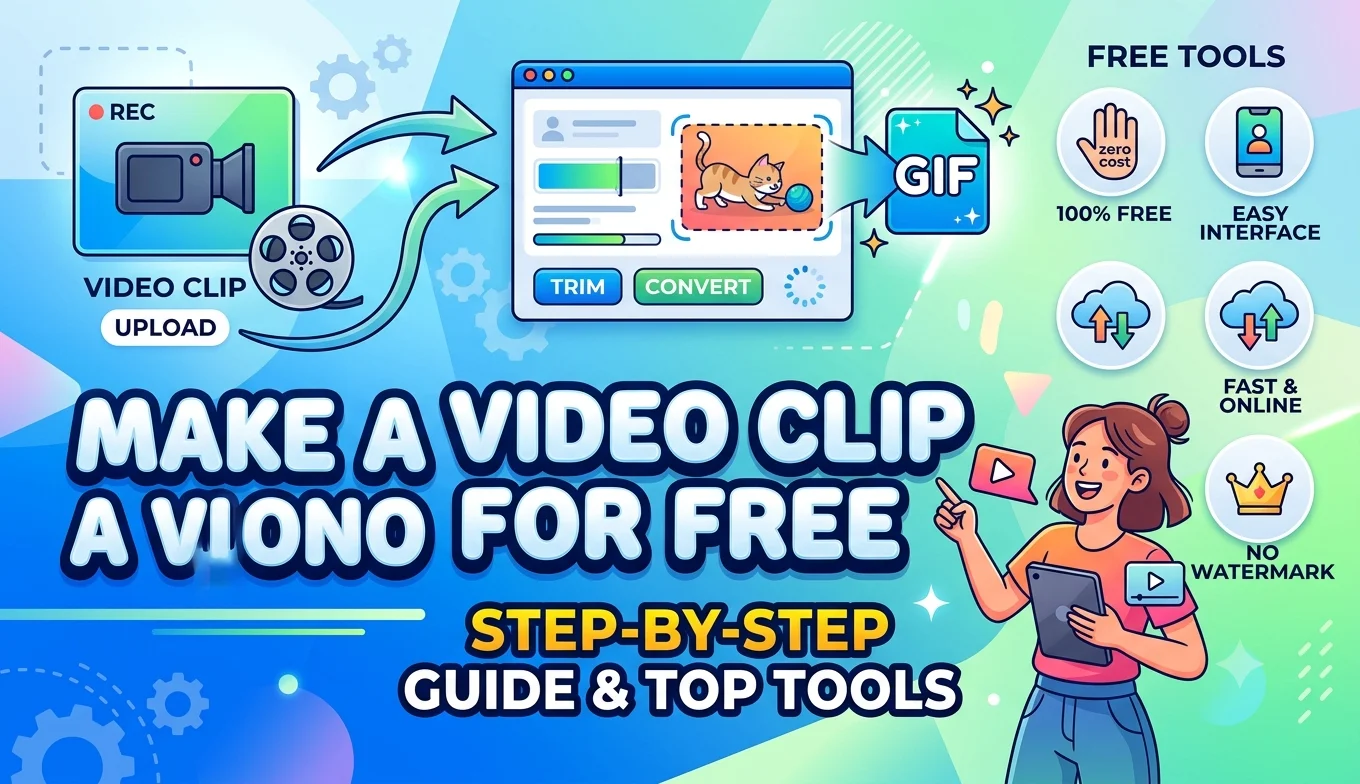
How to Make a GIF from a Video Clip for Free
You can make a GIF from any video clip for free by trimming the section you want, converting it with a free online GIF maker or free software, and adjusting the frame rate and size to balance quality against file size.
A GIF is essentially a short, looping sequence of frames, which is why the frame-extraction skills covered elsewhere on this site connect directly to making a good one. This guide walks through the full process, from picking the right clip to solving the most common GIF problems people run into a file that's too large, motion that looks choppy, or colors that look off.
Pick a clip that will actually work as a GIF
Not every video moment translates well into a GIF. The best source clips share a few traits:
- Short duration. Most GIFs work best under 5-10 seconds longer clips balloon in file size very quickly.
- A clear, simple moment. A short reaction, a repeating action, or one clean gesture reads better as a loop than a long, complex scene.
- Decent lighting. Dark or low-contrast footage tends to compress poorly once converted, showing visible blotchiness in the final GIF.
- A natural loop point. Clips where the last frame flows naturally back into the first frame make for the smoothest, least jarring loops.
Get your source video ready
- Pick a clip that will actually work as a GIF
- Get your source video ready
- Convert to GIF using a free online tool
- Convert to GIF using free desktop software
- Getting the settings right
- Why some GIFs come out choppy
- Why some GIFs are too large to share
- Adding text or captions to a GIF
- Alternative formats worth knowing about
- Conclusion
- FAQ
If your clip is part of a longer video, trim it down first using any basic video editor or even some GIF makers' built-in trimming tools, so you're only converting the exact section you want.
- How to Extract Frames Using FFmpeg
- How to Extract High-Quality Frames from 4K YouTube Videos
- Frame Rate Explained: 24fps vs 30fps vs 60fps
- How to Take a Screenshot on Mac
Convert to GIF using a free online tool
- Open a free online GIF maker.
- Upload your trimmed video clip, or paste a link if the tool supports pulling directly from an online video.
- Set your start and end points if you haven't already trimmed the clip separately.
- Choose your output settings width, frame rate, and quality covered in detail below.
- Convert and download the finished GIF.
Convert to GIF using free desktop software
For more control, or if you'd rather not upload your video anywhere, a free video editor or a command-line tool can convert a local video file into a GIF entirely offline. The general process is the same regardless of tool: trim the clip, set the frame rate and dimensions, then export as a GIF rather than a video file.
Getting the settings right
Frame rate. GIFs don't need the same frame rate as the source video. Something in the range of 10 to 15 frames per second usually looks smooth enough for most casual GIFs, while keeping file size manageable going much higher rarely improves the look enough to justify the larger file.
Dimensions. Smaller GIFs load faster and look sharper relative to their file size. A width around 400 to 500 pixels is a common sweet spot for GIFs shared in chats or social posts, since most platforms display them at a similar size anyway.
Duration. Keep it as short as the moment allows trimming even half a second off the start or end can meaningfully reduce file size without losing the point of the clip.
Color palette. GIFs are limited to a maximum of 256 colors, which is why some GIFs show visible banding or dithering, especially with gradients or subtle lighting. Simpler color palettes in the source footage convert more cleanly than smooth gradients or SO complex lighting.
Recommended Articles
 CREATIVE USE CASES
 CREATIVE USE CASES
 CREATIVE USE CASES
 CREATIVE USE CASES
Why some GIFs come out choppy
Choppy motion in a converted GIF usually comes down to one of these:
- Frame rate set too low for the amount of motion in the clip fast action needs a higher frame rate than a slow, simple gesture.
- Frames dropped during conversion to manage file size, which some tools do automatically once a size limit is reached.
- Source video itself was recorded at a low frame rate, in which case no amount of adjustment in the GIF maker can add smoothness that wasn't in the original footage.
Why some GIFs are too large to share
GIF file size scales with duration, frame rate, dimensions, and color complexity all multiplied together, which is why a seemingly short clip can still produce a surprisingly large file. If your GIF is too big:
- Reduce the frame rate slightly first this often has the biggest impact on file size with the smallest visible quality loss.
- Shrink the dimensions next, especially if it's being viewed at a small size anyway.
- Trim the duration further if the previous two steps aren't enough on their own.
Adding text or captions to a GIF
Many free GIF makers include a simple text tool for adding captions directly onto the GIF, which is common for reaction GIFs and memes. Keep text short and place it where it won't overlap with important motion in the clip, usually along the top or bottom edge.
Alternative formats worth knowing about
Some platforms increasingly favor short looping video formats over traditional GIFs, since they can achieve similar results at a smaller file size with better quality. If file size or quality becomes a persistent frustration with GIFs specifically, it's worth checking whether the platform you're sharing to actually supports a looping video format instead, which often looks noticeably better for the same size.
Conclusion
Making a GIF from a video clip is a straightforward process once you understand the handful of settings that actually matter: frame rate, dimensions, and duration all work together to determine both smoothness and file size. Starting with a short, simple, well-lit clip and trimming it as tightly as possible before converting will save you most of the troubleshooting that comes from oversized or choppy GIFs.
FAQ
What's the ideal frame rate for a GIF?
Somewhere between 10 and 15 frames per second works well for most casual GIFs, balancing smooth-enough motion against a reasonable file size.
Why is my GIF file so much bigger than the original video clip?
GIFs are far less efficient at compression than modern video formats, so even a short clip can produce a larger file than expected, especially at high frame rates or large dimensions.
Can I make a GIF from a video without any software at all?
Yes, free online GIF makers handle the entire process in your browser without installing anything, as long as you have the video file or a supporting link to upload.
Why do the colors in my GIF look different from the original video?
GIFs are limited to 256 colors total, so some color compression and banding is normal, especially with smooth gradients or subtle lighting in the source footage.
Can I turn a GIF back into a video?
Yes, most video editors can import a GIF and re-export it as a standard video file, though you won't gain back any detail lost during the original GIF conversion.